
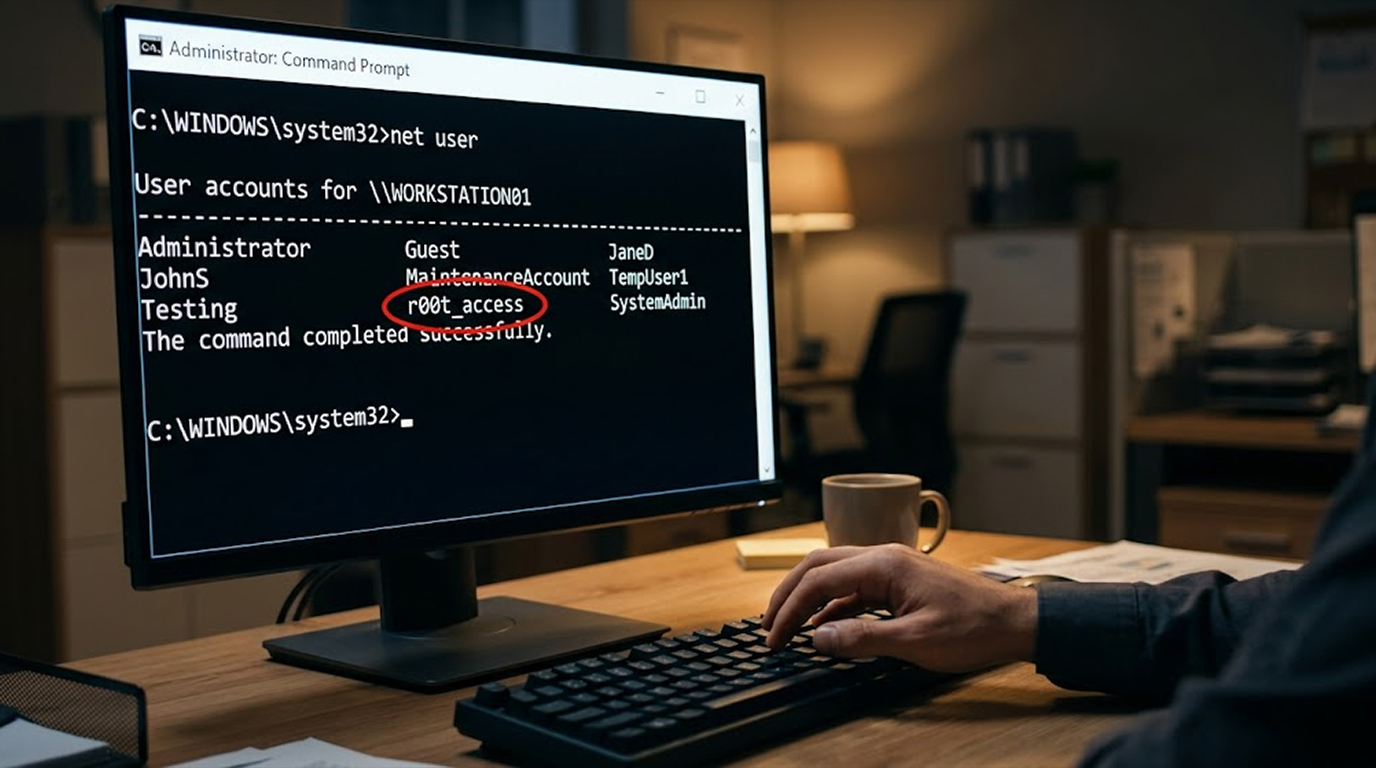
Now, you have started going through the accounts on your computer and you see something unusual. It may be some account which you did not create before or perhaps it was the one which you had deleted before. Anyways, you want to disable this account right away, and the quickest way to do so is by using Command Prompt.
Here's the practical, step-by-step guide to disabling a suspicious user account using CMD, complete with real-world scenarios you might actually encounter.
Before You Start
You need administrator access to disable a user account. If you're not an admin on your machine, stop right here. You won't be able to proceed. Also, I recommend saving any work you have open before you start, just in case you need to restart your computer.
Step 1: Open Command Prompt as Administrator
This is the critical first step. If you fail to run CMD in Administrator mode, then Windows will simply inform you don't have permission and won't let you execute any commands.
Here's how to do it:
- Press either the Start button or the Windows key on the keyboard
- In the search field, type "cmd" or "Command Prompt"
- The Command Prompt will show up among the results. Click it with the right mouse button
- In the pop-up menu, select "Run as administrator"
- If prompted for permission by Windows, click Yes
- A black window with white letters is supposed to open. In the title bar, there should be written "Administrator: Command Prompt." If it doesn't say that, you're not running it as administrator and you need to start over.
Step 2: View All User Accounts on Your Computer
You can't disable an account if you don't know its exact name. Windows is very picky about this. If you type the name wrong by even one character, the command won't work.
To list out all the user accounts that are present in your computer:
In the Command Prompt Window, type the following command and hit the “Enter” key:
net userAll the accounts that have been created in your computer will be listed. These include your own account as well as the accounts that seem to be suspicious.
Go through the list carefully and make a note of the name of the account that you would like to disable. This is case-sensitive. Also note spacing and capitalization; “Guest” is not the same as “guest” in Windows.
Step 3: Disable the Suspicious Account
With the exact account name now available, you may proceed to disable the account. It instructs Windows to make the account inactive.
Enter the below command in the Command Prompt and hit the Enter key:
net user “ACCOUNT_NAME” /active:no
Make sure you replace “ACCOUNT_NAME” with ACCOUNT NAME acquired in Step 2 above.
Examples for this include:
If the account name is "TempUser", then the command is:
net user "TempUser" /active:noThe command for the account name "Test_Admin_123" is:
net user "Test_Admin_123" /active:noAs you can see, there are quotation marks used to enclose the account name as these are used only when spaces exist within the account name. Otherwise, even if you don’t use quotation marks, the account will be disabled. Pressing the Enter key will show you the message "The command completed successfully." It’s done!
Step 4: Verify the Account Is Disabled
You want to be absolutely sure the command worked. However, there is an easy way to confirm it.
Type the following command and hit Enter:
net user "ACCOUNT_NAME"You will receive the output that will show the account details along with the activity status of the account. If everything is okay, the output should display “Account active” with “No”. However, if the output shows “Yes”, the command execution is a failure.
Real-life Scenarios That You May Face
Here are some scenarios that will help you understand when you may have to disable a user account using CMD. This is exactly what happens to many people.
Scenario 1: Uninvited Guest User Account
The Situation:
While you are using your computer, something is wrong with your login page, which means that there must be an uninvited guest user account in your account. After investigating, you find out that you have a "User" or "Admin" account of which you are unaware.
What You Do:
You open Command Prompt as administrator. You type net user and see a list that looks something like this:
Administrator
DefaultAccount
Guest
John
User
WDAGUtilityAccount
You see "User" sitting there, and you know you never created it. You disable it immediately.
The Command You Run:
net user "User" /active:noWhat Happens Next:
The account is disabled. Now you need to figure out how it got there. You run a full malware scan. You check your installed programs for anything suspicious. You change your own password just to be safe. In this case, you might have caught a remote access trojan before it could do any real damage.
Scenario 2: The Ex-Employee Who Still Has Access
The Situation:
You run a small business with five employees. One of your employees left three months ago, and you thought you deleted their account. But you're going through your system and you notice that user is still listed. You don’t even remember if you have deleted it or not and do not want to take any risks.
What You Do:
First, you go to Command Prompt and start working in the administrative mode using the net user command to display all users. In your list of users, you find that the previous employee named “Sarah_Jones” is still there. You decide to disable the user.
The Command to Be Used:
net user "Sarah_Jones" /active:noWhat Happens Next:
The account will become inactive, meaning that she won't be able to use it on the system, despite using the same password. Moreover, you will make sure that she didn’t access any information that could be harmful for your business and changed the passwords of your business. Now, you’ve made your security tighter.
This is the crucial step. To be more sure, you can also check whether this account had remote access.
Type this command to see more details:
net user "Sarah_Jones"Look through the output. Check the "Logon hours" and "Last logon" information. This tells you if she's been accessing the system recently. If "Last logon" is recent, you have a bigger problem on your hands.
Scenario 3: The Ransomware Attack that Produced a Hidden Admin Account
The Situation:
Your computer is acting weirdly. It looks like files have been renamed, and there are unusual pop-ups. An alert is being raised by Antivirus. There’s ransomware. While investigating the user accounts, you come to the realization that there is a new administrator account by the name "Admin_2024_Recovery".
This is the common technique used by ransomware creators. They create a hidden admin account to remain in control of your system post-rebooting.
What You Do:
You're in crisis mode. You need to lock this account out right now.
The Command You Will Need to Enter:
net user "Admin_2024_Recovery" /active:noWhat Will Be Done:
Your account is now disabled; however, this is only one of the first steps. The attackers will not be able to use your account to have control over your system. Now you should run an antivirus scan, disconnect from the Internet, and restore your data from backups.
Very important note: If this occurs to you, chances are the malware has done considerable damage. Disabling the account is critical, but at the same time, you should also consider the fact that there could be a bigger problem – you may have to wipe your hard drive clean and start all over again with Windows.
Scenario 4: The "Guest" Account That Shouldn't Be Enabled
The Situation:
You're doing a routine security check on your Windows computer. Something seems wrong to you, but you can't quite put your finger on it. You look at your user accounts and see that the guest account is enabled.
In new versions of Windows, the guest account should normally be disabled. If someone turned it on, that's suspicious.
What You Do:
You don't want the Guest account active. It is a risk to security as it will give everyone access to your PC without any passwords.
The Command That You Run:
net user "Guest" /active:noThe Next Step Is:
The account is disabled once again.You check the login screen to confirm it's gone. Now you investigate why it was enabled in the first place. You check the event logs to see who might have enabled it. If you're on a network, you check if someone got unauthorized physical access to your computer.
Scenario 5: The Persistant Account
The Situation:
An account named “system_agent” was disabled previously by you, but a week later, you look at your list of users again, and there it is, back again and fully functional. Someone has been enabling it.
What You Do:
This time, you disable it, but now you realize that you have a much larger problem. You will have to find out what is enabling it.
Command To Execute:
net user "system_agent" /active:noWhat Happens Next:
You conduct a full scan on your system using different security software. You check all your scheduled tasks as well as startup programs. You may also decide to enable auditing to find out who is doing it.
Additional Information: One can check for the password and logon ages to get additional details about the usage of the account.
Type in:
net user "system_agent"If "Last logon" displays the current date and time, then the account is being actively used. The password update indicates that the user maintains the account.
Scenario 6: General "User" Account in a Shared Computer
The Situation:
You are working in a computer that is used by many people in either a library or a computer laboratory. There exists a user named "Public_user." It seems that there are some shady things going on with this user. There have been files which have been deleted. Changes have been made to the settings.
What You Do:
You decide to disable the account temporarily and start the investigation by revoking its privileges.
The Command You Type:
net user "Public_User" /active:noWhat Will Happen Next:
The account will be disabled; visitors will no longer be able to use the account to login. You will investigate and study the logs of the activity that raised your suspicion. After you finish, you will activate the account with new privileges.
Step 5: Actions to Take after Disabling the Account
Once the account is disabled, it is just a matter of beginning. You still need to take some actions after this process.
- Check whether the account is being used. When you find that the account is being reactivated all the time, it means you have got problems. Your account is being restored by someone or even by a virus. Perform a scan for any malware.
- Should you be absolutely convinced that it is not a legitimate account, then maybe you should consider deleting it completely. However, this is something you should only do if you are absolutely sure about it because once an account is deleted, all its files and settings are also lost. When in doubt, keep it disabled for a few weeks and monitor whether anyone tries to reactivate it.
- Change your passwords. If you've found a suspicious account on your system, assume it got there for a reason. Change your own administrator password. Also change any other important passwords you use on that machine, like email or banking.
- Check for other suspicious activity. Look at your installed programs, your startup items, and your scheduled tasks. A hidden account often comes with other hidden things.
How to Re-enable the Account
What if you disabled the wrong account by mistake, or you later realize it was actually a legitimate account? Don't panic. The process to re-enable it is exactly the same, with one tiny change.
- Open Command Prompt in administrator mode
- Enter the following command and hit Enter:
net user "ACCOUNT_NAME" /active:yesThe account will now be reactivated instantly.
A Word of Caution
Use caution when dealing with built-in Windows accounts. "Administrator" and "Guest" are two accounts which are built in by default in the Windows system. The built-in Administrator account is able to control everything in your computer. Disabling it may lead to losing control over important functions.
The Guest account, on the other hand, is usually disabled by default on modern versions of Windows. If you see it enabled, that's actually a red flag and you should disable it.
Also, never disable the only administrator account on your computer. If you have only one admin account and you disable it, you'll lock yourself out of your own system. That's a major headache to recover from.
Why This Works
The net user command is one of the oldest and most reliable Windows management tools. It's been around for decades, and it works on every version of Windows from XP through Windows 11. There is no need for any specific software or downloads for this function; it is directly embedded in the operating system.
The parameter /active:no informs Windows to mark the account setting as “disabled.” The operating system always checks this setting when there is a login attempt. If the setting is marked as "no," then Windows denies the login attempt.
It should be noted that this process is different from deleting the account; all its files, settings, and permissions remain intact. They're just locked away until someone re-enables the account. This makes it a safe and reversible option.
When You Can't Use CMD
- Sometimes Command Prompt just won't work. Maybe you don't have administrator access, maybe the net user command is disabled by group policy, or maybe the account you're trying to disable is a domain account on a network.
- If it is a case of the domain account, you would require the network administrator rights in order to disable the account. Though the net user command still works, but here you wish to disable the account which is managed by a server rather than the local computer. Contact your IT department for help.
- If you don't have administrator access, you can't disable accounts. That's by design. It prevents unauthorized users from messing with system accounts.
The Bottom Line
Disabling a suspicious user account from Command Prompt is straightforward. Open Command Prompt as administrator, list down the existing accounts using net user and disable the account using net user “ACCOUNT_NAME” /active:no. It will take you less than a minute.
The important things to note here are:
- Always run the Command Prompt as administrator
- Make sure you have the correct account name
- Check the account is disabled through its status
- Never disable the only existing administrator account
- Find out how this account came into existence
Once the account is disabled, take a moment to investigate how it got there. A suspicious account is often a symptom of a larger problem. Use your security software to scan for viruses and other threats.
You have now acquired the necessary skills to disable the suspicious account in no time at all. This skill will come in handy whether you are a system administrator or even just a person protecting their own personal computer.
Quick Reference Cheat Sheet
Here's a quick reference for the commands you'll use most often:
View all user accounts: net user
Disable an account: net user "ACCOUNT_NAME" /active:no
Re-enable an account: net user "ACCOUNT_NAME" /active:yes
Check account details: net user "ACCOUNT_NAME"
Delete an account permanently: net user "ACCOUNT_NAME" /delete
FAQ Section
Is it possible to disable a user account without being an administrator?
No, it is not possible as disabling a user account needs administrator permissions because of security concerns. If you do not have admin permissions, then you will not be able to execute this command.
Does disabling an account delete the account's files?
No, disabling an account does not delete the files that belong to the user account. All the files, documents, and settings associated with that account remain
How can I find out if there are any user accounts which have been hidden on my computer?
The net user command reveals all the user accounts present on a system, including the ones that are hidden. In case you need further details, you can make use of the command wmic useraccount list full.
What should I do if the disabled account continues to be re-enabled?
This is a very serious warning sign that indicates either manual reactivation of the account or automatic account activation by malware. Immediately run an antivirus and anti-malware check of your computer. If you work for a company, notify the IT department.
How do I delete a user account using CMD rather than simply disable it?
You can do so through net user "ACCOUNT_NAME" /delete. But it is highly advised that you disable the account first and then delete if you are certain that it is malicious.
What is the difference between account disabling and account lockout?
Account disabling is accomplished manually by the administrator to prevent further use of the account. Account lockout on the contrary happens automatically after a certain number of failed attempts. The locked account has the possibility of being unlocked automatically after a while, but the disabled account stays disabled until it is enabled again.