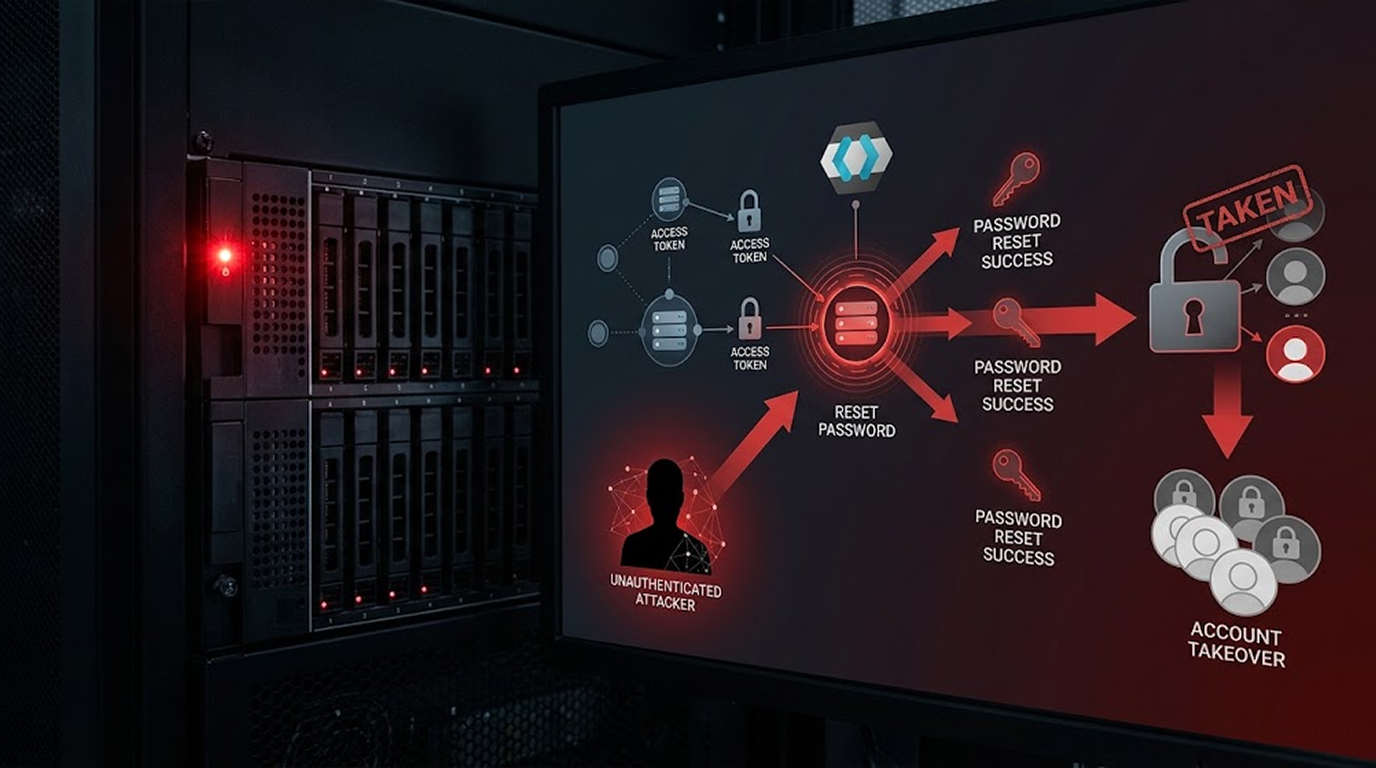
Most people treat their Google account as one account among many, a login they use for email and a few apps, and that mental model is dangerously out of date, because for a very large number of people the Google account has quietly become the single point of failure for their entire digital life, holding the password vault, the recovery email for everything else, and the identity that dozens of third-party services trust.
So when someone gets into that account, they don't get one login, they get the keys to the building, and the phrase that captures it best is simple, which is that if someone gets your Google account, they get every saved password, because the vault is only as strong as the account that unlocks it.
Here is what the attacker actually gets, the realistic paths in, the signals that something is wrong, and the uncomfortable part of the recovery that most people get wrong.
Important Disclaimer
This article is intended for educational and defensive purposes only, and it describes general attack patterns and defensive practices rather than specific incidents or vendor guarantees. Account security features change frequently, so verify the current options in your own account settings rather than relying on any single description.
The steps below are for securing accounts you own. Never attempt to access an account that isn't yours, because unauthorised access is a criminal offence in most jurisdictions. The author assumes no liability for account compromise, data loss, business outcomes, or damages resulting from the use or misuse of this information.
What the Attacker Actually Gets
It helps to be specific about the prize, because "account takeover" sounds abstract and the reality is a list.
They get your saved passwords, because the vault syncs to the account, which means it can be opened on any device the attacker signs in from.
They get your email, which is the reset channel for almost every other service you use, so anything that can be recovered by email can be taken over next.
They get your session cookies, which means they may not even need your password, because a valid session is a completed authentication.
They get OAuth grants, which means every app you've ever clicked "Sign in with Google" on is now potentially reachable, and some of those apps have broad scopes over your files, calendar, or contacts.
They get recovery control, which means they can add their own recovery email or phone number and lock you out of your own account while you're still able to log in.
They get payment methods, Drive contents, Photos, location history, contacts, and calendar, which is a rich enough picture for highly convincing fraud against you and against people who trust you.
And they get the ability to read your security alerts, which is the part that makes detection harder, because the notification that would have warned you arrives in an inbox they now control.
Why the Password Vault Is the Real Prize
Browser password managers are genuinely better than reuse, and they're not magic, because the vault has to be unlockable by something, and that something is your account.
So the encryption protects the vault against someone who steals a database file or intercepts a backup, and it does not protect the vault against someone who has your account, because at that point they are you as far as the unlock is concerned, and they can open the vault on their own hardware and export everything in plaintext.
That's the sentence worth internalising, which is that a password manager protects you from forgetting and from reuse, and it does not protect you from someone holding the account that unlocks it.
The Realistic Ways In
None of these require breaking encryption, and all of them are common.
- Infostealer malware. A small piece of malware running as your user reads the browser's credential store and cookie store and uploads both, which takes seconds, needs no privilege escalation, and produces no visible change on your machine.
- Adversary-in-the-middle phishing. A convincing replica of the Google sign-in page proxies your login in real time, including the second factor, and then steals the resulting session cookie, which means your password and your MFA both worked correctly and the attacker is still inside.
- Session token theft without malware. A token exposed through a malicious browser extension, a shared or synced profile, or a device you left signed in gives the same result as a stolen password.
- OAuth consent phishing. An app asks for permission rather than a password, you approve it, and the app now has delegated access that doesn't require your password at all and often survives a password change.
- Recovery flow abuse. The attacker uses the recovery process rather than the login, which is why a weak recovery email or a phone number vulnerable to a SIM swap is a genuine attack path rather than a theoretical one.
- Credential reuse plus stuffing. An old password from a breach elsewhere is tried against Google, and if the account has no second factor, the attempt succeeds.
- An unattended or shared device. A signed-in browser on a machine someone else can reach is a complete compromise with no technical exploit at all.
The Signals Worth Watching
Detection is possible and it usually arrives as a small number of specific events rather than as a dramatic warning.
- New device sign-in notifications you didn't cause. This is the single most valuable alert, and it's why you should never dismiss one.
- Password change emails you didn't request. Even if you ignore them, the fact they arrived means someone tried.
- A new recovery email or phone number on the account. This is the attacker preparing to lock you out, and it is the most dangerous single change.
- New app passwords created. These bypass your main login and are easy to miss.
- Gmail forwarding rules or filters you didn't create. An attacker who sets a filter to archive security alerts is hiding in plain sight.
- Backup codes regenerated. That means someone is preparing for the possibility that you recover the account.
- Unexpected "security alert" emails from other services. Those are the downstream resets firing after the attacker used your email.
- Chrome sync activity on an unfamiliar device. Your bookmarks, history, and passwords are replicating somewhere you don't recognise.
The Checks, In Order
Start with the security overview, which aggregates most of what matters in one place.
Go to your Google Account, then Security, and read the whole page rather than skimming, because the list of recent security activity, your devices, and your third-party access all live there.
Then check the device list, which is the fastest way to spot an intruder.
Security → Your devices shows signed-in sessions with device type, location, and last activity, and any entry you don't recognise is a compromise until proven otherwise.
Then check what has access, because OAuth grants survive password changes.
Security → Third-party apps with account access lists every app you've authorised, and the useful question is not whether you remember the app, it's whether you still use it and whether its scopes match what it should do.
Then check the recovery settings, because that's where a takeover becomes permanent.
Security → How you sign in → Recovery email and phone should contain only channels you control, and anything you don't recognise is a red flag that outweighs everything else on this list.
Then check app passwords, which are a favourite because they bypass the main login.
Security → How you sign in → 2-Step Verification → App passwords should be empty unless you deliberately created entries, and any unfamiliar entry should be revoked immediately.
Then check Gmail rules, because hiding is the most common persistence trick.
In Gmail, go to Settings → Filters and Blocked Addresses and Settings → Forwarding and POP/IMAP, and look for anything that archives, deletes, marks as read, or forwards your mail to an address you don't own.
Then check Chrome's password manager, because you want to know what the attacker could see.
Open chrome://password-manager/passwords and look at how many entries exist, because that number is the size of the blast radius rather than an abstract concern.
And on a machine you administer, the local files are worth confirming exist so you understand what's on disk.
# Windows (PowerShell) — Chrome and Edge credential/cookie stores
Get-ChildItem "$env:LOCALAPPDATA\Google
\Chrome\User Data\Default\Login Data",
              "$env:LOCALAPPDATA\Google\Chrome
\User Data\Default\Network\Cookies",
              "$env:LOCALAPPDATA\Microsoft\Edge\
User Data\Default\Login Data" -ErrorAction SilentlyContinue

# macOS
ls -la ~/Library/Application\ Support/Google/Chrome/Default/ 2>
/dev/null

# Linux
ls -la ~/.config/google-chrome/Default/ 2>
/dev/null
Finding those files is normal, and understanding that a piece of malware running as you can read both of them in one step is the point.
The Recovery Step Everyone Gets Wrong
Here is the uncomfortable part, and it's why this topic deserves its own article rather than a paragraph.
Changing your Google password is necessary and insufficient, for three separate reasons.
First, it doesn't un-steal the passwords, because if the attacker exported your vault, they already have the contents, and a password change on Google doesn't touch the hundreds of other sites in that vault. Every credential that was saved needs to be rotated on the site itself, starting with your email, banking, and anything with payment access.
Second, it doesn't necessarily end their session, because a valid session token can remain valid after a password change unless sessions are explicitly revoked, which is why "Sign out of all devices" is a separate action and not an optional one.
Third, it doesn't remove delegated access, because OAuth grants are permissions rather than logins, and a granted app can keep working until the grant is revoked.
So the correct order is revoke sessions first, then change the password, then regenerate backup codes, then clear any unrecognised recovery methods and app passwords, then revoke third-party access, then clean Gmail filters and forwarding, and only then begin the long tail of rotating the credentials that were saved.
Building It So This Stops Being Catastrophic
The long-term fix is to reduce the value of a stolen account and to reduce the chance of theft in the first place.
- Turn on passkeys and use them where offered. A passkey stays in your device's secure hardware, can't be phished into a replica site, and can't be replayed from another machine, which removes the entire category of relay and real-time phishing attacks.
- Keep hardware security keys registered as a second factor. A physical key that requires a touch defeats remote phishing in a way that SMS and push notifications do not.
- Consider the Advanced Protection Program if you're high-risk. It exists precisely for people whose email is the master key to everything else, and it restricts the very recovery flows attackers abuse.
- Reduce what's stored in the browser vault. A dedicated password manager with a separate master secret means a Google takeover doesn't automatically mean a credential export, and the browser stops being the crown jewels.
- Get your recovery email off the same provider. If the recovery for your Google account is another account that itself resets via Google, you have created a loop with no independent trust anchor.
- Register more than one second factor. A single device is a single point of failure, and losing it during a takeover is exactly when you need the second one.
- Review third-party access quarterly. Grants accumulate silently, and an old integration with broad scopes is a standing risk that costs nothing to remove.
Real Two Scenarios
Scenario 1: The Cookie That Outlived the Password
The Setup
A user clicks a sponsored search result that leads to a convincing Google sign-in page, enters their credentials and approves the push notification, and the page then redirects them to their real inbox so that nothing seems wrong.
What Happened
The page was a proxy, so the credentials and the second factor were genuine and correctly used, and the attacker captured the resulting session cookie, then signed in from their own infrastructure where no prompt was required because the session already existed.
The Result
The attacker opened the synced password vault, exported it, and then spent the next two days resetting accounts through the email they now controlled, and the user's password change on day three did not end the session, did not revoke the exported credentials, and did not remove the Gmail filter that archived every security alert.
The Lesson
The password and the MFA both worked and the account was still lost, which is why revoking sessions and rotating the saved credentials matter more than the password change that everyone reaches for first.
Scenario 2: The Recovery Email Nobody Checked
The Setup
Another user notices a sign-in notification from an unfamiliar city, changes their password immediately, enables two-factor authentication with an authenticator app, and considers the incident closed.
What Happened
The attacker had already added a recovery email address three days earlier, during an earlier session that the user had dismissed as a glitch, so when the user later lost access after a phone replacement, the recovery flow sent the code to the attacker's address.
The Result
The account is recovered only after a prolonged identity verification process, and the investigation shows the initial access came from a session on a shared family tablet that had never been signed out.
The Lesson
Recovery settings are the attacker's persistence mechanism, and checking them is a two-minute task that most people skip because it isn't the password field.
How to Spot a Compromised Google Account
- A sign-in notification you didn't cause. Treat it as real until proven otherwise.
- An unfamiliar device in the sessions list. Location and last-activity time are usually enough to identify it.
- A recovery email or phone you don't recognise. This is the highest-priority finding on the whole list.
- App passwords you didn't create. They bypass the main login and survive most account changes.
- Gmail filters that archive, delete, or forward. Hiding alerts is the most common persistence trick.
- Third-party apps with broad scopes you no longer use. Delegated access doesn't need your password.
- Downstream password reset emails. A wave of them means the email account is already being used against you.
- Chrome sync on an unknown device. Your vault is replicating somewhere you don't control.
Quick Reference: What to Check and What It Tells You
|
Check |
Where |
What It Reveals |
|
Recent security activity |
Security → Recent security activity |
The initial access event |
|
Your devices |
Security → Your devices |
Active sessions, including the attacker's |
|
Recovery email and phone |
Security → How you sign in |
Lockout preparation |
|
App passwords |
Security → 2-Step Verification |
Login bypasses that survive resets |
|
Third-party access |
Security → Third-party apps |
Delegated access that persists |
|
Gmail filters and forwarding |
Gmail settings |
Concealment of alerts |
|
Chrome password manager |
chrome://password-manager/passwords |
The size of the blast radius |
|
Sign out of all devices |
Security → Your devices |
Whether sessions were actually revoked |
The Bottom Line
A Google account is not one login, it's the identity that unlocks your password vault, receives your resets, and delegates access to a long list of third parties, which is why losing it means losing far more than an inbox.
The recovery order matters more than the effort, which means revoke every session, then change the password, then regenerate backup codes, then remove recovery methods and app passwords you don't recognise, then revoke third-party grants, then clean Gmail rules, and then rotate the saved credentials themselves, because the vault contents were stolen the moment the account was.
So do the two-minute checks this week, which are the devices list and the recovery settings, and then turn on passkeys, because the goal isn't to make your account harder to guess, it's to make it worthless to steal.
FAQ
If someone gets my Google account, can they see my saved passwords?
Yes, because the synced vault unlocks with the account, so an attacker signed in as you can open it on their own device and export the contents in plaintext, which is why a Google takeover is effectively a credential breach across every site you've saved.
Does changing my Google password protect the saved passwords?
No, because the vault contents may already have been exported, so changing the Google password doesn't un-steal the hundreds of credentials inside it, and those need to be rotated on each site individually.
Why doesn't a password change log the attacker out?
Because an active session is authenticated by a token rather than by your password, so unless sessions are explicitly revoked, a stolen token can remain valid after the password changes, which is why "Sign out of all devices" is a separate step.
How do I see if someone else has accessed my Google account?
Open your Google Account, go to Security, and review Recent security activity, Your devices, recovery email and phone, app passwords, and third-party apps with account access, because those five places cover most of what an attacker changes.
What is the most dangerous change an attacker can make?
Adding a recovery email or phone number, because that lets them recover the account later and lock you out, and it survives a password change unless you specifically check and remove it.
Can malware steal my Google session without my password?
Yes, infostealers read the browser's cookie store and credential database in seconds, and the stolen session can be replayed from another machine without any prompt because the authentication is already complete.
What are app passwords and why do they matter?
They are long-lived credentials that bypass your main login and your second factor, so an attacker who creates one keeps access even after you change your password and revoke sessions, which is why they should be empty unless you created them deliberately.
What is the best way to prevent this?
Use passkeys and hardware security keys, keep your recovery email on a different provider, reduce what's stored in the browser vault, review third-party access quarterly, and consider the Advanced Protection Program if your email is the master key to everything else.