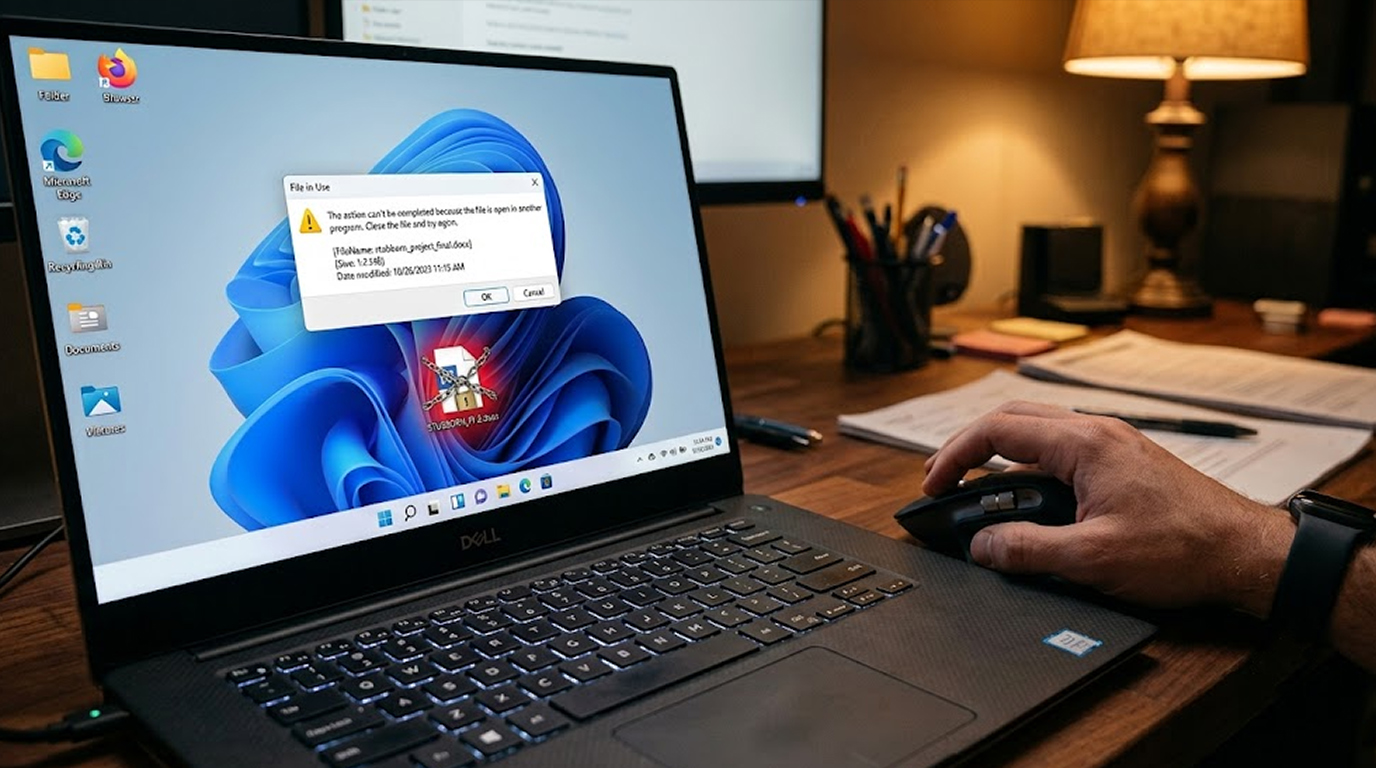
You right-click a file, you hit delete, and nothing happens. Or worse, you get an error message that makes absolutely no sense. "File in use." "Access denied." "You need administrator permission." Sound familiar?
We've all been there. You're trying to clean up your computer, and one stubborn file just refuses to go away. It's frustrating, it's confusing, and it makes you wonder if your computer is somehow working against you.
The good news is there's always a reason, and there's almost always a fix. Let me walk you through the 7 most common reasons you can't delete a file and show you exactly how to solve each one.
The 7 Most Common Reasons
Quick Security Checklist
- Scan your system or website
- Update all dependencies
- Change passwords
- Enable 2FA
Reason 1: The File Is Currently In Use
This is by far the most common reason. You try to delete a file, and Windows tells you it's open in another program. The problem is, you can't see which program.
Here's what's happening. When opening a file, the program in use will lock this file so that no other programs can modify its content while you are doing your job on it.
This is a safety feature. You don't want your word processor saving a document at the exact same time your backup software is trying to replace it.
But sometimes, even after you close the program, Windows doesn't release the lock immediately. The file remains "in use" despite being unused by any running program.
How to fix it. One solution to this is to simply restart the computer. Your system will be compelled to release all the locked files. When you turn on your computer again, try deleting the file again.
In addition to restarting your computer, you can also use Task Manager to know what application is locking the file. Press Ctrl+Shift+Esc, go to the Performance tab, and click Open Resource Monitor at the bottom.
Go to the CPU tab, look for the Associated Handles search box, and type in the name of your file. It will show you exactly which process is locking it. Right-click that process and end it. Then try deleting the file again.
Reason 2: You Don't Have the Right Permissions
On other occasions, Windows may fail to delete a file on your computer simply because you are not permitted to do so. Such cases often happen where you want to delete system files, protected files, or any other file belonging to another user of the same computer.
Here's what this looks like. In many cases, you will encounter an error that says, “Access denied,” or “You need permissions to complete this task.” It feels like the computer is asking you for permission, but no one can give you that.
How to fix it. Right-click the file, select Properties, go to the Security tab, and click Advanced. At the top, you'll see the current owner. If it's not you, click Change next to Owner, type in your username, and click OK. This gives you ownership.
The next thing you need to do is to go to the Security tab, and there you have to press "Edit" and choose your user account name and ensure that "Full Control" is checked in "Allow." Now, you can proceed further to delete the file.
This is to emphasize that when the file appears in system folders such as the Program Files and Windows, you will definitely need it later on.
Reason 3: The File Is Corrupted
There are instances where the file becomes corrupted. Maybe your computer crashed while the file was being saved. Maybe the hard drive has a bad sector. Maybe a virus corrupted it. Whatever the reason, Windows doesn't know what to do with a corrupted file.
The error message usually says something like "The file or directory is corrupted and unreadable." The file is there, it's taking up space, but Windows can't interact with it properly.
How to fix it. Start the command prompt as administrator. Enter “chkdsk /f” and hit Enter. This will instruct the computer to scan your hard drive for any problems and correct them. The computer may need to be restarted to complete the check.
But if all fails, you could try using sfc /scannow command from the Command Prompt window. This command scans and fixes any corrupted system files. However, it is worth a try but does not guarantee fixing your corrupted file.
If your corrupt file is very persistent and cannot be deleted in normal mode, then it will have to be deleted in safe mode, as in safe mode all background programs will not run.
Reason 4: Malware Is Blocking the Deletion
This one is genuinely concerning. Some viruses and malware deliberately prevent you from deleting their files. It's a survival mechanism. If you can't delete the file, you can't remove the infection.
Here's how it works. The malware has a process running behind the scenes that keeps track of any attempts at deletion. If you try to delete the file, the malware will stop the action. In some cases, the malware might even restore the deleted file immediately afterwards.
How to fix it. Boot your computer into Safe Mode with Networking. Safe Mode is when all essential Windows services are up and running. Most malware can't load in Safe Mode, which means it can't protect its files.
Once in Safe Mode, run a full antivirus and anti-malware scan. Let it remove everything it finds. Upon completion of the scan, start your computer in the usual way and attempt to delete the file once more.
In case the file remains even after carrying out a virus scan, then there may be a rootkit installed and specialized software will be needed to get rid of it. At such times, it is advisable to seek expert assistance.
Reason 5: The File Path Is Too Long
This one is quite unknown to many. In Windows, there is a maximum number of characters that can be in the file path. The path, together with the drive, folders, and filename, cannot exceed 260 characters.
This problem arises if there is a file that is buried deeply within a file hierarchy with names that are quite long; the overall length of the path may be more than this limit. It will become impossible for Windows to deal with it.
How to fix it. The easiest way would be to go to the file path and change the folder names to shorter ones. To do that right click on each folder and change its name. If you have a file located in
C:\Users\YourName\Documents\Projects\2024\Reports\Financial\Quarterly\Final\Q4\Summary\Report_October_Final_v2.docx, rename each folder one by one.
Another possibility is to make use of the "subst" command to set up a virtual drive for pointing to the directory of the file. In this way, the path is shortened, and you can delete the file.
Reason 6: The File Is Part of a Running Application
Some files aren't just in use. They're essential to a running application. Program files, DLLs, and driver files are common examples. If you try to delete a file that Windows needs to run a program, Windows will block you.
Here's the tricky part. You might not have the application open yourself. It could be running as a background service. You might not even know it's there.
How to fix it. Launch Task Manager and scroll through the list of active processes. In case the process for the file is found in there, then right-click on the process and choose the option End Task. Now try deleting the file.
In case you are unable to find the process using the file, use the method of Resource Monitor that was explained earlier. Type in the file name, and Resource Monitor will show you exactly which process has it locked.
If the process is a Windows system process, don't end it. That could crash your computer. Instead, you'll need to delete the file from Safe Mode or use a bootable USB drive to delete it from outside the Windows environment.
Reason 7: File Locker Software Is Preventing Deletion
Some software deliberately locks files as a feature. File synchronization apps like Dropbox or OneDrive sometimes lock files while they're syncing. Backup software locks files during backups. Security software locks files to protect them from being modified.
The file isn't in use by a program you're running, but it's locked by a background process you might have forgotten about.
How to fix it. Stop or shut down all sync or backup software that may access the file. If the file is located on a synced folder, stop the syncing process and attempt to delete the file.
If you use security software that provides protection to some selected folders, turn it off. Just remember to turn it back on afterward.
When Nothing Works
Sometimes, despite your best efforts, a file just won't delete. When that happens, you have a few nuclear options.
- Boot into Safe Mode. This bypasses most background processes and allows you to delete files that are normally locked.
- Use a bootable USB drive. Create a Windows installation USB, boot from it, and use the command prompt from the installation environment to delete the file. Since you're not booting into Windows, nothing can lock the file.
- Use third-party deletion tools. For programs that do not allow themselves to be deleted, software applications like LockHunter or Unlocker can delete these files forcibly. Programs such as these will add an additional menu option from which to select when right-clicking a file.
The Bottom Line
The next time you can't delete a file, don't panic. It's not your computer being difficult. There's always a logical reason, and there's almost always a solution.
Start with the simplest fix. Restart your computer. If that doesn't work, move on to the specific solution for the error message you're getting. Most of the time, you'll have the file deleted within a few minutes.
And if you're dealing with a file that keeps coming back no matter what you do, that's a red flag. Run a malware scan immediately. Persistent files that recreate themselves are almost always malware.
Your computer wants you to be able to manage your files. When a file won't delete, it's either protecting itself, protecting you, or dealing with something broken. Once you know which one it is, you can take the right steps to fix it.
FAQ Section
Why do I get "File in use" error when the file is closed?
Occasionally, Windows does not release the file lock as soon as the program is closed. The easiest way out is to restart your PC. Alternatively, you can use Resource Monitor to find the process locking the file and terminate it.
What does "Access denied" mean when deleting a file?
It means you don't have the necessary permissions to delete that file. You'll need to take ownership of the file and grant yourself full control permissions before Windows will let you delete it.
Can malware prevent me from deleting a file?
Yes. Many viruses and trojans block deletion attempts to protect themselves. Boot into Safe Mode and run a full antivirus scan before attempting to delete the file again.
Why does the file keep reappearing after I delete it?
A file that comes back after deletion is almost certainly malware. The virus is recreating the file because it's part of its infection. It is important to get rid of the malware itself and not just the specific file.
What if I am not able to delete the file even in Safe Mode?
In case Safe Mode does not work, you may use bootable USB drives or tools such as LockHunter. They function independently of the Windows operating system, which means that there cannot be anything locking the file.
Is it safe to delete system files?
Generally no. In cases where the file is found in the system folders like the Program Files, Windows, and System32, it is very certain that the file must be there for some reason. It is important not to delete the files without being sure of their functions.