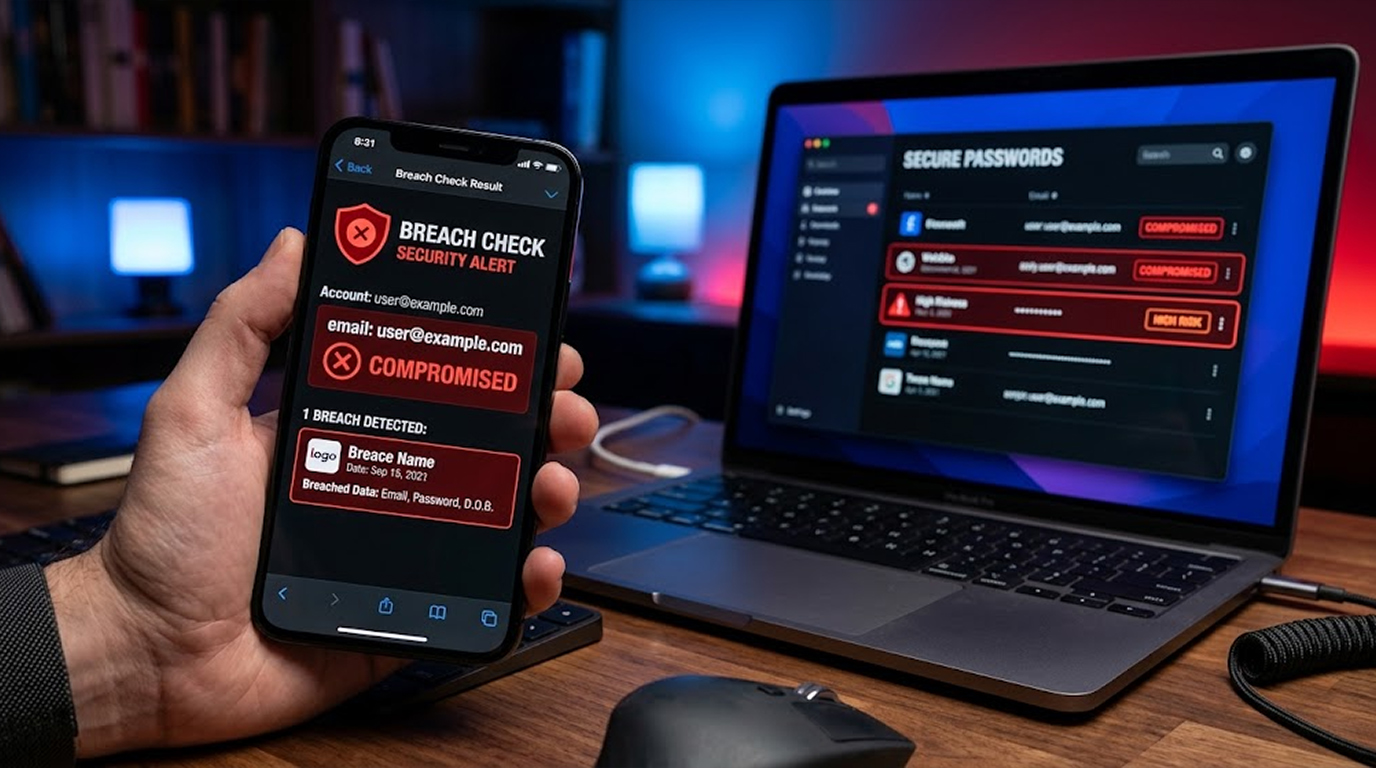

Somewhere on your network there is a service you forgot about, a staging server that was never meant to face the internet, a database with no password, an admin panel behind a default login, and it has been sitting there for months, indexed, searchable, and waiting for someone to notice.
Shodan noticed. It noticed on the day that service came online, and it has been cataloguing it ever since, which means anyone with a browser and a free account can find it too.
The good news is that you can find it first, and you can do it without touching a single packet on your own network, because Shodan already did the crawling for you.
Important Disclaimer
This article is intended for educational and defensive purposes only. The techniques described here are shared to help security professionals and asset owners understand their own internet exposure.
Only query Shodan for infrastructure you own or have explicit written permission to assess. Do not use these techniques to profile, probe, or enumerate systems that belong to someone else. Unauthorized reconnaissance can violate computer misuse laws in many jurisdictions.
The author assumes no liability for any damages, legal consequences, or other outcomes resulting from the use or misuse of this information. Always obtain proper authorization before conducting any security assessment, and stay legal, stay ethical, stay responsible.
What Shodan Actually Is
Shodan is a search engine, but it does not index web pages, it indexes services.
It runs continuous scans across the public IPv4 and IPv6 space, connects to open ports, grabs the banners and responses that services return, and stores all of it in a searchable database. When you search Shodan, you are not scanning anything, you are reading results that were collected earlier.
That distinction matters for two reasons.
First, it is passive from your perspective. Querying Shodan does not send traffic to the target, so you are not touching anyone's systems when you search.
Second, it is what attackers see. Shodan does not show you anything a determined attacker could not find with the same query, which makes it the closest thing to an attacker's eye view that you can get for free.
Why This Belongs in Your Security Program
Most organizations have a reasonably good idea of what their perimeter is supposed to look like, and a much weaker idea of what it actually looks like.
The gap comes from a handful of familiar sources.
Shadow IT, where a team spins up a server without telling anyone. Forgotten staging environments that were temporary and then became permanent. Cloud resources that were spun up for a proof of concept and never torn down. Third-party vendors and contractors with infrastructure that carries your name. Legacy services that predate your current change management process.
Each of these creates internet exposure that your vulnerability scanner may never see, because your scanner only scans what you told it to scan, and you cannot scan what you do not know exists.
Shodan is how you find the things you did not know existed.
Getting Started Without Spending Anything
The free tier is enough to run a meaningful review of a small environment.
Create an Account
Go to Shodan, create an account, and verify your email. A free account gives you limited search results and a small monthly query allowance, which is plenty for a manual review of your own assets.
Get Your API Key
Once you are logged in, your account page shows an API key. You do not need it for browser searches, but you will want it for the command line tool.
Install the CLI
The command line tool is more comfortable than the browser for structured work, and it lets you export results.
pip install shodan
shodan init YOUR_API_KEY
From here you can run searches, pull host details, and export data to a file for review.
The Filters That Actually Matter
Shodan has a large filter vocabulary, and most of it is noise for this use case. These are the ones worth knowing.
|
Filter |
What It Does |
Example |
|
net: |
Search a CIDR range |
net:203.0.113.0/24 |
|
org: |
Search by organization name |
org:"Example Corp" |
|
hostname: |
Search by hostname or domain |
hostname:example.com |
|
port: |
Search a specific port |
port:3389 |
|
product: |
Search by software product |
product:nginx |
|
version: |
Search by version string |
product:nginx version:1.18.0 |
|
country: |
Restrict by country |
country:GB |
|
city: |
Restrict by city |
city:"London" |
|
http.title: |
Match page titles |
http.title:"Dashboard" |
|
http.favicon.hash: |
Match by favicon fingerprint |
http.favicon.hash:-1234567 |
|
ssl: |
Match certificate fields |
ssl.cert.subject.CN:example.com |
|
has_screenshot: |
Only results with screenshots |
has_screenshot:true |
A few notes on availability. Basic filters like net, port, country, product, and hostname work on the free tier. Some advanced filters, vulnerability data, and bulk exports require a paid plan, so check what your account tier supports before building a workflow that depends on them.
The favicon hash filter deserves a special mention. Your application probably serves the same favicon everywhere, which means you can find every instance of it across the internet, including the ones on forgotten subdomains and old cloud IPs. It is one of the most useful tricks for finding assets that do not share your main domain name.
Step 1: Define Your Actual Attack Surface
Before you search, write down everything you believe belongs to you.
Start with the obvious.
Your registered domain names, including the ones you registered defensively and never used. Your allocated IP ranges, which you can find from your regional internet registry. Your autonomous system numbers. Your cloud provider accounts, including the ones belonging to subsidiaries and acquired companies.
Then add the less obvious.
Vendor and partner arrangements where your data flows through someone else's infrastructure. Subsidiary and brand names that may have their own domains. Old company names from acquisitions that still resolve.
The point of this exercise is to build a list of search terms, because Shodan searches on strings and ranges, not on intent.
Step 2: Search Your IP Ranges
This is the most direct approach and usually the most productive.
If you know your netblocks, search them directly.
net:203.0.113.0/24Then work through every range you own. For each result, Shodan shows the IP, the open ports, the detected services, the banners, and often a screenshot.
What you are looking for is anything you cannot identify, and anything you can identify but did not expect to be public.
A reverse proxy on port 443 is expected. A Redis instance on 6379 is not. A printer with a web interface is understandable. A Jenkins server with an open login page is a problem.
Step 3: Search Your Domain Names
Certificate transparency means that every TLS certificate issued for your domains is public, which means Shodan can find hosts by certificate even when the hostname itself is not obvious.
ssl.cert.subject.CN:example.com
hostname:example.com
This catches a category of asset that IP range searches miss, cloud instances with elastic IPs that are not in your netblocks but do present a certificate with your domain name.
Step 4: Search Your Organization Name
The org filter searches the organization name associated with the IP allocation.
org:"Example Corp"This is imperfect, because organizations appear under different names in different registries, and because cloud providers often register ranges under their own names rather than yours. It is still worth running, because it occasionally surfaces infrastructure that IP searches miss.
Run it with variations. Full legal name, trading name, abbreviated name, and any previous company names.
Step 5: Review What You Found
For every result, ask a short set of questions.
- Is this asset supposed to be internet facing? If the answer is not clearly yes, treat it as a finding.
- Does this service need to be reachable from the public internet? Many internal services end up public because of a firewall rule someone added and never removed.
- Is it patched? Shodan often returns version strings, which tells you whether the service is running something old enough to have known issues.
- Is authentication enabled? Open databases, admin panels, and management interfaces without login are the highest priority findings.
- Does it hold or touch sensitive data? A public-facing service that can read from your customer database is a much bigger problem than a public-facing marketing site.
Screenshots are especially useful here. Shodan frequently captures a screenshot of what the service presents on its web interface, which often makes the purpose of an unknown host immediately obvious.
Step 6: Set Up Monitoring
A one-time review goes stale within weeks, because new services appear and old ones change.
Shodan Monitor lets you define the networks and IP ranges you care about and receive alerts when something new appears or something existing changes. Tiers and limits vary, so check the current offering before you plan around it.
The value here is straightforward. The next time a developer spins up an Elasticsearch instance on a public IP at 2 AM, you find out about it the same day instead of discovering it during an incident.
If you prefer to work from the command line, you can script the same thing yourself.
shodan alert create "Corporate Netblocks" 203.0.113.0/24
shodan alert list
shodan alert info ALERT_ID
Practical Scenarios
Practical Scenario 1: The Forgotten Staging Server
The Setup
A product team spins up a staging environment on a cloud instance to test a new release. The instance gets a public IP because it was quicker than configuring a VPN. Nobody adds it to the asset inventory.
The Finding
You search your organization name in Shodan and find an unfamiliar host on a cloud provider range. It is running a web application on port 8080 with a login page, and the page title matches your product name. Shodan also shows a screenshot that confirms it is your application.
The Problem
The staging environment was seeded with a copy of production data, including customer records. It is running a build from four months ago with a known vulnerability in a dependency. Authentication is enabled, but the default admin account was never changed.
The Fix
Restrict the instance to a VPN or a bastion host, rotate the admin credentials, purge production data from the environment, and add a process so new environments go into the inventory on creation.
The Lesson
The asset nobody owns is the asset nobody monitors.
Practical Scenario 2: The Exposed Database
The Setup
An analytics team deploys an Elasticsearch cluster to support an internal dashboard. The cluster is placed on a public subnet so the team can reach it from home without a VPN.
The Finding
You check your netblocks through Shodan and notice that port 9200 is accessible to your familiar IP. Shodan provides you with an Elasticsearch banner and index names.
The Problem
Elasticsearch has no authentication enabled by default in older configurations, which means the index names Shodan can see are readable by anyone who queries the same IP.
The Fix
Move the cluster to a private subnet, enable authentication, restrict access by security group or firewall rule, and confirm that no data was accessed in the meantime by reviewing access logs.
The Lesson
The service with no authentication is the service that leaks on day one.
Practical Scenario 3: The Remote Desktop Endpoint
The Setup
A small regional office has a server that staff connect to over RDP. The firewall rule that allows RDP from anywhere was added years ago during an emergency and never scoped down.
The Finding
You search your netblocks and see port 3389 open. Shodan returns the RDP banner, including the Windows version string.
The Problem
RDP exposed to the internet is a constant target. It attracts brute force attempts, credential stuffing, and exploitation of pre-authentication vulnerabilities. The Windows version string tells an attacker exactly which exploits are likely to work.
The Fix
Move RDP behind a VPN, enable network level authentication if it is not already on, enforce MFA, restrict source IPs, and review authentication logs for signs of attempted access.
The Lesson
Convenience rules become permanent rules, and permanent rules become findings.
Practical Scenario 4: The Certificate That Gave You Away
The Setup
A subsidiary has its own domain and its own infrastructure, and it is not part of the parent company's asset inventory.
The Finding
You search Shodan using the certificate filter for your parent domain and find a host that presents a certificate with your brand in the subject. The host is a legacy application the subsidiary still uses.
The Problem
The application is running an end of life framework and has not been patched in two years. It is internet facing and it belongs to you, even though nobody in the parent company knew it existed.
The Fix
Bring the asset into the inventory, assess the application, patch or replace it, and add subsidiary domains to your certificate transparency monitoring so future surprises get caught earlier.
The Lesson
Certificate transparency makes your hidden assets visible, to you and to everyone else.
Practical Scenario 5: The Admin Panel Nobody Remembers
The Setup
A contractor set up a monitoring tool for a project that ended eighteen months ago. The tool has an admin panel and a default login. The project is over, but the server is still running.
The Finding
You search for common admin panel titles and filter by your country, and one of the results is a host that resolves to a domain you recognize but no longer actively use.
The Problem
The tool has known vulnerabilities, and the default credentials are documented publicly. An attacker who finds it has a foothold on a server inside your network, even if the project it supported is long gone.
The Fix
Decommission the server, or if it is still needed, update it, change the credentials, restrict access, and confirm whether it can reach anything sensitive from its network position.
The Lesson
Decommissioned projects do not automatically decommission their infrastructure.
What Attackers Do With What They Find
Understanding the attacker's workflow makes the findings easier to prioritize.
They start broad, filtering by organization name, netblock, or certificate to build a target list. They narrow by service and version to find known vulnerabilities. They look for services that should never be public, because those are usually the easiest to exploit. They check for default credentials, because defaults survive in surprising places. They screenshot everything, because a picture tells them which host is worth their time.
The whole process takes minutes, and it happens before any traffic reaches your network. By the time you see a login attempt in your logs, the attacker already knows what is behind the door.
Remediation Workflow
When you find something you did not know about, work through a consistent set of questions.
- Confirm ownership first. If you cannot confirm that the asset is yours, stop and investigate before doing anything else, because acting on someone else's infrastructure is a legal problem regardless of intent.
- Determine whether it needs to be public. Many findings resolve to a simple answer, the service was never supposed to be internet facing, and the fix is a firewall rule or a private subnet.
- If it must be public, verify authentication. Confirm that logins are required, that default credentials have been changed, and that the authentication cannot be bypassed.
- Check patch status. Version strings from Shodan tell you what is running, and a quick check against vendor advisories tells you whether that version has known issues.
- Review data exposure. Ask what the service can read, what it can write, and what it can reach on the network. A public service that cannot reach anything sensitive is a much smaller problem than one that can.
- Document and monitor. Add the asset to your inventory, note the finding and the fix, and set up an alert so you know if it changes.
Other Tools Worth Knowing
Shodan is not the only option, and using more than one improves coverage because each service crawls differently.
|
Tool |
Strength |
|
Strong certificate and host search, popular in research |
|
|
Good coverage and API access |
|
|
Strong coverage in some regions where others are weaker |
|
|
FOFA |
Widely used in some regions, strong fingerprinting |
|
Tells you which internet scanners are hitting you, useful context |
The practical approach is to run the same asset list through two or three of these and compare results. The assets that appear in one and not the others are usually the ones nobody knew about.
Quick Reference: Shodan Review Checklist
|
Step |
Action |
|
1 |
Build an asset list, domains, IP ranges, ASNs, subsidiaries |
|
2 |
Search your netblocks with net: |
|
3 |
Search your domains with hostname: and ssl.cert.subject.CN: |
|
4 |
Search your organization name with org: |
|
5 |
Filter by service and port to find unexpected exposures |
|
6 |
Review screenshots to identify unknown hosts |
|
7 |
Confirm ownership before acting |
|
8 |
Determine whether the service needs to be public |
|
9 |
Verify authentication, patching, and data exposure |
|
10 |
Set up Shodan Monitor or scripted alerts |
|
11 |
Repeat quarterly and after major infrastructure changes |
The Bottom Line
Shodan is not a hacking tool in the way people imagine, it is a mirror, and the uncomfortable part is that it shows you what everyone else can already see.
Your exposed assets are already indexed. Attackers already know about the staging server, the open database, the RDP endpoint, and the admin panel nobody remembers. What they do not know is whether you are watching, and a quarterly Shodan review changes that answer.
Define your attack surface, search it with the right filters, review what comes back with an attacker's mindset, and fix what you find. Then set up monitoring so the next surprise arrives as an alert instead of an incident.
Find your exposure before someone else monetizes it.
FAQ Section
Is using Shodan legal?
Yes, searching Shodan is legal in most jurisdictions because you are querying a database of previously collected results, not scanning the target yourself. Using it to profile systems you do not own may violate other laws, so restrict your searches to your own infrastructure.
Do I need a paid Shodan account?
No, the free tier is enough for a manual review of a small environment. Paid plans unlock more results, advanced filters, vulnerability data, and higher API limits.
Does searching Shodan send traffic to my servers?
No, Shodan returns previously collected data. The crawl happened earlier, so querying it does not touch your systems.
How do I find assets that do not use my main domain?
Use the certificate transparency filter with your domain, and use the favicon hash filter if your applications share a favicon. Both approaches find hosts that IP and hostname searches miss.
How often should I run this review?
Quarterly is a reasonable baseline, plus a review after any major infrastructure change, cloud migration, or acquisition.
What is the most common finding?
Services that were never meant to be public, usually staging environments, development tools, and databases. The second most common is public services with default or missing authentication.
Should I use other tools besides Shodan?
Yes, running the same asset list through Censys, BinaryEdge, or ZoomEye improves coverage because each crawler sees the internet slightly differently.