The Windows Command Prompt (CMD) is one of the most powerful tools built into every version of Windows — yet most users barely scratch the surface. Whether you're an IT professional, a developer, a student, or just someone who wants to work smarter, knowing these 100 essential CMD commands will save you hours of clicking through menus. This guide covers everything from basic navigation to advanced networking, file management, system diagnostics, and automation — all with real, copy-paste examples.
Basic Navigation Commands
01 · dir — List Directory Contents
Lists all files and folders in the current directory. One of the most frequently used CMD commands for browsing the file system.
dir
dir /a              :: Show hidden files
dir /s              :: Recursive — all subdirectories
dir /o:s            :: Sort by size
dir *.txt           :: List only .txt files
02 · cd — Change Directory
cd Documents
cd ..              :: Go up one level
cd /d D:\Projects  :: Switch to D: drive
cd \              :: Go to root of drive
03 · cls — Clear Screen
cls
:: Screen is now empty
04 · echo — Print Text / Toggle Echo
echo Hello, World!
Hello, World!
echo %USERNAME%       :: Print current user
echo Done > log.txt  :: Write to file
echo off             :: Suppress command echoing
05 · help — Get Command Help
help                 :: List all commands
help dir            :: Help for 'dir' command
dir /? :: Alternative help syntax/? flag for quick reference documentation.06 · copy — Copy Files
copy file.txt D:\Backup
copy *.log D:\Logs\    :: Copy all .log files
copy a.txt + b.txt combined.txt :: Merge two files
07 · move — Move or Rename Files
move report.docx D:\Reports\
move old_name.txt new_name.txt  :: Rename
08 · del — Delete Files
del temp.txt
del *.tmp              :: Delete all .tmp files
del /f /q locked.txt :: Force-delete, no promptdel does NOT send files to the Recycle Bin. There's no undo. Always double-check before running.09 · md / mkdir — Create Folders
/p to create nested folder trees in one command.md NewFolder
mkdir Projects\2024\Reports :: Create nested dirs10 · rd / rmdir — Remove Directories
/s /q for silent recursive deletion.rd EmptyFolder
rd /s /q OldProject :: Delete folder + all contents11 · type — Display File Contents
cat.type readme.txt
type config.ini | more :: Page through long files12 · rename / ren — Rename Files
ren oldname.txt newname.txt
ren *.htm *.html         :: Batch rename extension
13 · tree — Show Folder Structure
tree
tree /f               :: Include files in output
tree /f > structure.txt :: Save tree to file
14 · where — Find Executable Location
which command.where python
C:\Python311\python.exe
where node
C:\Program Files\nodejs\node.exe15 · exit — Close CMD Window
exit
exit 0    :: Exit with success code
exit 1    :: Exit with error code
File Management Commands
16 · xcopy — Extended Copy
copy for bulk operations.xcopy C:\Source D:\Dest /s /e /h /i
:: /s = subdirs, /e = empty dirs, /h = hidden, /i = treat as dir
xcopy *.docx D:\Docs\ /y :: Overwrite without prompt17 · robocopy — Robust File Copy
robocopy C:\Source D:\Backup /mir
:: /mir = mirror (sync both dirs)
robocopy C:\Data D:\Data /e /z /mt:8 /log:backup.log
:: /z=restartable, /mt:8=8 threads, /log=write logrobocopy instead of xcopy for any serious backup or sync task. It automatically retries failed transfers.18 · attrib — Change File Attributes
Sets or removes file attributes: Hidden, Read-only, System, Archive. Useful for protecting important files or revealing hidden ones.
attrib +h secret.txt       :: Make file hidden
attrib -h -r file.txt     :: Remove hidden + read-only
attrib +r *.docx           :: Make all Word docs read-only
19 · find — Search Text in Files
grep command.find "error" app.log
find /i "windows" notes.txt :: Case-insensitive
find /c "TODO" *.js :: Count occurrences20 · findstr — Advanced String Search (Regex)
find that supports regular expressions and multi-file search. The CMD equivalent of grep.findstr "error" *.log
findstr /s /i "404" C:\Logs\* :: Recursive search
findstr /r "[0-9]\{3\}" data.txt :: Regex: 3 digits21 · compact — NTFS File Compression
compact /c largefile.iso    :: Compress file
compact /c /s C:\Archive\   :: Compress entire folder
compact /u file.iso          :: Uncompress
22 · fc — File Compare
fc file1.txt file2.txt
fc /b image1.png image2.png  :: Binary compare
23–30 · More File Commands
:: 23 · sort — Sort file contents alphabetically
sort names.txt
dir | sort

:: 24 · more — Display output page by page
more bigfile.txt

:: 25 · assoc — View/Change file associations
assoc .txt              :: View .txt association

:: 26 · ftype — View/Set file type open commands
ftype txtfile

:: 27 · cipher — Encrypt/Decrypt files (EFS)
cipher /e secret.docx

:: 28 · mklink — Create symbolic links
mklink link.txt C:\Real\file.txt

:: 29 · pushd/popd — Save and restore directory
pushd C:\Temp  &  popd

:: 30 · subst — Map folder to a drive letter
subst Z: C:\Projects\MyApp
System Info & Configuration
31 · systeminfo — Full System Report
Displays a comprehensive report of your Windows installation, hardware specs, hotfixes, and network info.
systeminfo
systeminfo | findstr "OS Name"  :: Filter output
systeminfo /fo csv > sysinfo.csv
32 · winver — Windows Version Popup
winver33–45 · System & Config Commands
:: 33 · sfc — System File Checker (fix corrupt files)
sfc /scannow

:: 34 · dism — Repair Windows image
dism /Online /Cleanup-Image /RestoreHealth

:: 35 · shutdown — Shutdown / Restart / Sleep
shutdown /s /t 60    :: Shutdown in 60 seconds
shutdown /r /t 0     :: Restart now
shutdown /a         :: Abort pending shutdown

:: 36 · regedit — Open Registry Editor
regedit

:: 37 · reg — Manage Registry from CMD
reg query HKLM\SOFTWARE\Microsoft\Windows\CurrentVersion

:: 38 · set — View/Set environment variables
set                   :: List all vars
set MYVAR=HelloWorld

:: 39 · setx — Permanently set environment variable
setx MY_PATH "C:\Tools" /m

:: 40 · date / time — View or set system date/time
date /t  &  time /t

:: 41 · hostname — Display computer name
hostname

:: 42 · ver — Display Windows version string
ver

:: 43 · msconfig — Open System Configuration
msconfig

:: 44 · msiexec — Install/uninstall MSI packages
msiexec /i installer.msi

:: 45 · powercfg — Manage power settings & battery
powercfg /batteryreport  :: Save battery report
Networking Commands
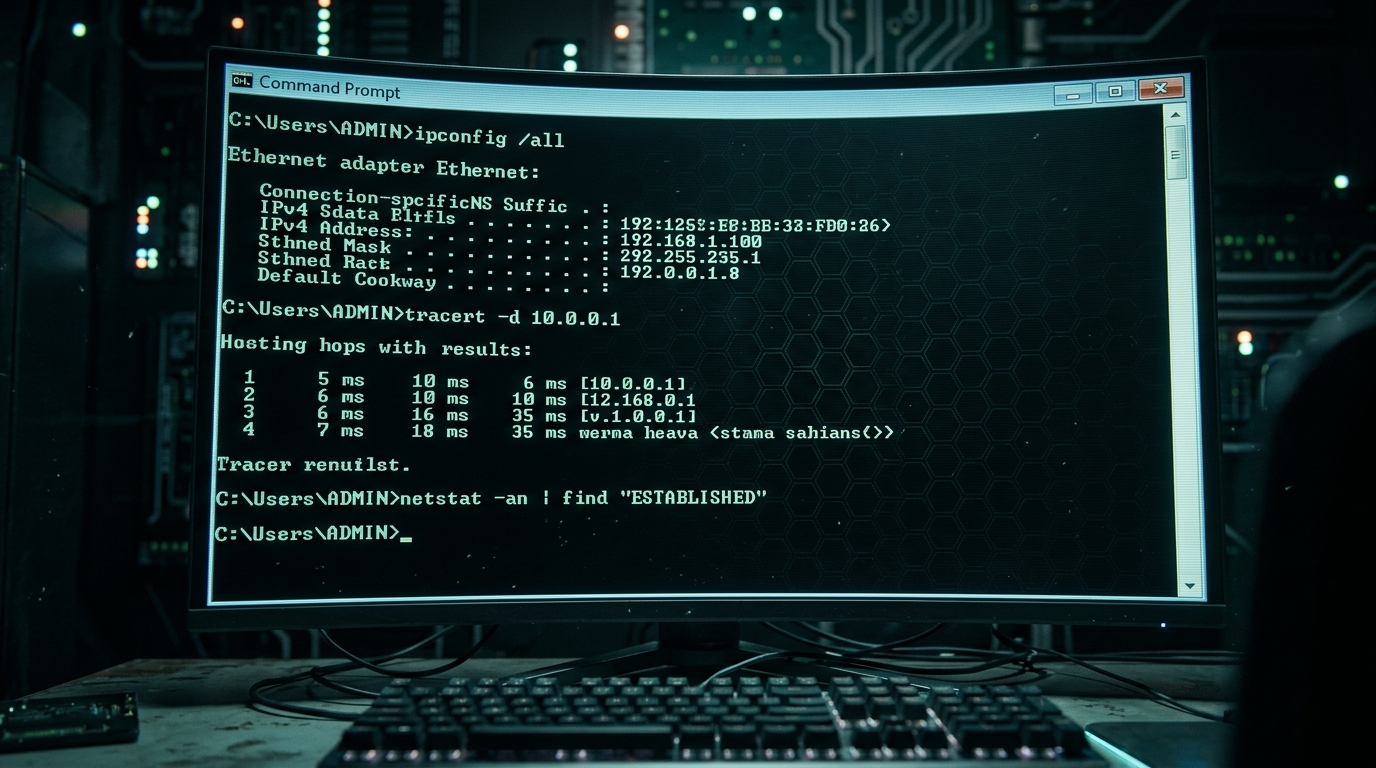
46 · ipconfig — IP Address Configuration
The #1 networking command. Displays all IP addresses, subnet masks, default gateways, and DNS servers. Every Windows user needs this.
ipconfig
ipconfig /all           :: Full detail including MAC
ipconfig /flushdns      :: Clear DNS cache
ipconfig /release       :: Release DHCP lease
ipconfig /renew         :: Renew DHCP lease
47 · ping — Test Network Connectivity
ping google.com
ping -t 8.8.8.8         :: Continuous ping (Ctrl+C to stop)
ping -n 10 192.168.1.1  :: Send exactly 10 packets
ping -l 1024 host.com   :: Send 1024-byte packets
48 · tracert — Trace Network Route
tracert google.com
tracert -d 8.8.8.8      :: Skip DNS lookups (faster)
49 · netstat — Network Statistics
netstat -an             :: All connections + listening ports
netstat -b              :: Show owning process (Admin)
netstat -ano            :: Include PID numbers
netstat -r              :: Show routing table
50–60 · More Network Commands
:: 50 · nslookup — DNS lookup tool
nslookup google.com
nslookup google.com 8.8.8.8   :: Use Google DNS

:: 51 · pathping — Combined ping + tracert
pathping google.com

:: 52 · arp — Show/Manage ARP table
arp -a                  :: List all ARP entries

:: 53 · net use — Map a network drive
net use Z: \\Server\Share

:: 54 · net share — View shared folders
net share

:: 55 · net view — List computers on network
net view

:: 56 · netsh — Advanced network configuration
netsh wlan show profiles          :: WiFi profiles
netsh wlan show profile MyWiFi key=clear  :: See WiFi password

:: 57 · getmac — Get MAC address
getmac /v

:: 58 · route — View/Edit routing table
route print

:: 59 · telnet — Test port connectivity
telnet smtp.gmail.com 587

:: 60 · ftp — Built-in FTP client
ftp ftp.myserver.comnetsh wlan show profile [WiFiName] key=clear is the fastest way to recover a forgotten Wi-Fi password on Windows — no third-party tools needed.Processes & Services
61 · tasklist — List Running Processes
Shows all currently running processes with their PIDs — the CMD equivalent of Task Manager's Processes tab.
tasklist
tasklist | findstr chrome     :: Find Chrome processes
tasklist /svc              :: Show services per process
62 · taskkill — Kill a Process
taskkill /im chrome.exe       :: Kill by name
taskkill /pid 4832 /f        :: Force kill by PID
taskkill /im notepad.exe /t  :: Kill + child processes
63–70 · Services & Process Commands
:: 63 · sc — Service Control Manager
sc query                    :: List all services
sc start wuauserv           :: Start Windows Update
sc stop spooler             :: Stop Print Spooler

:: 64 · net start / net stop — Manage services
net start MySQL
net stop MySQL

:: 65 · start — Launch apps from CMD
start chrome.exe
start notepad.exe C:\file.txt
start /min app.exe          :: Launch minimized

:: 66 · wmic process — WMI process management
wmic process get name,processid,commandline

:: 67 · schtasks — Manage scheduled tasks
schtasks /query              :: List all tasks
schtasks /run /tn "MyTask"   :: Run task now

:: 68 · at — Legacy task scheduler
at 14:00 shutdown /s       :: Shutdown at 2 PM

:: 69 · timeout — Wait N seconds
timeout 30                 :: Wait 30 seconds
timeout /t 5 /nobreak    :: No keypress skip

:: 70 · runas — Run as different user
runas /user:Administrator cmd.exe
Disk & Drive Tools
71 · chkdsk — Check Disk for Errors
Scans and repairs file system errors and bad sectors. Run with /f to fix errors automatically. Requires Admin.
chkdsk
chkdsk C: /f          :: Fix errors on C:
chkdsk D: /f /r :: Fix + recover bad sectors/f on the system drive requires a restart. It will schedule the scan for next boot.72 · diskpart — Disk Partition Manager
diskpart
DISKPART> list disk
DISKPART> select disk 1
DISKPART> list partition
DISKPART> clean :: ⚠ Wipe entire diskdiskpart clean will permanently erase ALL data on the selected disk. Always double-check which disk is selected.73 · format — Format a Drive
format E: /fs:NTFS /q    :: Quick format as NTFS
format E: /fs:FAT32      :: Format as FAT32
format E: /fs:exFAT      :: Best for USB drives >32GB
74–80 · More Disk Commands
:: 74 · defrag — Defragment a drive
defrag C: /u /v    :: Defrag with progress + verbose

:: 75 · vol — Show volume label and serial number
vol C:

:: 76 · label — Change drive label
label D: MyBackup

:: 77 · fsutil — Advanced file system utility
fsutil volume diskfree C:
fsutil file createnew test.txt 1048576  :: Create 1MB file

:: 78 · wmic logicaldisk — Disk info via WMI
wmic logicaldisk get size,freespace,caption

:: 79 · mountvol — Manage volume mount points
mountvol

:: 80 · expand — Expand compressed cabinet files
expand file.cab -F:* C:\Output\
User Accounts & Permissions
81–88 · User & Permission Commands
:: 81 · net user — Manage user accounts
net user                       :: List all users
net user john P@ss123 /add     :: Add user
net user john /delete          :: Delete user

:: 82 · net localgroup — Manage groups
net localgroup Administrators john /add

:: 83 · whoami — Current user and privileges
whoami
whoami /priv         :: List user privileges
whoami /groups       :: List group memberships

:: 84 · icacls — File/Folder permissions
icacls C:\Data         :: View ACL
icacls C:\Data /grant john:F  :: Grant full control

:: 85 · cacls — Legacy ACL tool (older Windows)
cacls C:\file.txt

:: 86 · gpupdate — Force Group Policy refresh
gpupdate /force

:: 87 · gpresult — View applied Group Policies
gpresult /r

:: 88 · takeown — Take ownership of file
takeown /f C:\locked\file.txt
Batch Scripting & Automation
89–95 · Scripting & Automation Commands
:: 89 · if — Conditional logic
if exist file.txt echo File found!
if %ERRORLEVEL% == 0 echo Success

:: 90 · for — Loops in batch scripts
for %f in (*.log) do del %f     :: Delete all .log files
for /l %i in (1,1,10) do echo %i  :: Loop 1 to 10

:: 91 · goto — Jump to label
goto :end
:end

:: 92 · call — Call a subroutine or script
call backup.bat

:: 93 · errorlevel — Check last command result
ping google.com
if %errorlevel% neq 0 echo Ping failed!

:: 94 · pause — Wait for keypress
echo Press any key to continue...
pause

:: 95 · @echo off — Silent batch mode
@echo off
echo This is a clean script
pause
Power User Commands
96–100 · Elite CMD Commands
:: 96 · wevtutil — Windows Event Log manager
wevtutil qe System /c:10 /f:text  :: Last 10 System events
wevtutil cl Application               :: Clear Application log

:: 97 · wmic — Windows Management Instrumentation
wmic cpu get name,maxclockspeed     :: CPU info
wmic memorychip get capacity        :: RAM modules
wmic product get name,version       :: Installed software
wmic bios get serialnumber          :: BIOS serial / PC serial

:: 98 · cipher /w — Wipe free disk space
cipher /w:C:\  :: Securely zero free space on C:

:: 99 · Pipe + Redirect Operators
command > out.txt      :: Redirect output to file
command >> out.txt     :: Append to file
command 2> err.txt     :: Redirect errors only
cmd1 | cmd2            :: Pipe output to next command
cmd1 && cmd2           :: Run cmd2 only if cmd1 succeeds
cmd1 || cmd2           :: Run cmd2 only if cmd1 fails

:: 100 · cmd /k — Run command and keep window open
cmd /k "ping google.com -t"     :: Keep window after command
cmd /c "dir && pause" :: Close when donewmic bios get serialnumber instantly gives you your PC's hardware serial number — incredibly useful for warranty claims or asset management.Quick Reference Cheat Sheet
| Command | Category | What It Does |
|---|---|---|
| dir | Navigation | List files and folders |
| cd | Navigation | Change directory |
| cls | Navigation | Clear the terminal screen |
| copy / xcopy / robocopy | Files | Copy files (basic → advanced) |
| del / rd | Files | Delete files / remove directories |
| attrib | Files | Set hidden, read-only, system attributes |
| findstr | Files | Search text with regex |
| systeminfo | System | Full hardware and OS report |
| sfc /scannow | System | Scan and repair system files |
| shutdown | System | Shutdown, restart, or abort |
| ipconfig | Network | View and manage IP configuration |
| ping | Network | Test network connectivity |
| tracert | Network | Trace packet route to host |
| netstat | Network | Active connections and open ports |
| netsh wlan | Network | Manage Wi-Fi and see passwords |
| tasklist / taskkill | Processes | View and kill running processes |
| sc / net start | Services | Manage Windows services |
| chkdsk | Disk | Check and repair disk errors |
| diskpart | Disk | Partition and format drives |
| wmic | Advanced | WMI: hardware info, software list |
// HOW TO OPEN COMMAND PROMPT AS ADMINISTRATOR
Press Win + X → select "Terminal (Admin)" or "Command Prompt (Admin)"
Press Win + R → type cmd → press Ctrl + Shift + Enter
Search "cmd" in Start → right-click → "Run as administrator"
In the taskbar search: type cmd → click "Run as Administrator" on the right panel
Master the Command Line — Master Windows
You now have a complete reference to 100 Windows CMD commands—from beginner essentials to advanced administrative tools. Bookmark this guide for future reference, practice the commands regularly, and you'll become significantly more efficient when managing and troubleshooting Windows systems. If you found this guide useful, share it with colleagues or friends and explore our other Windows tutorials for even more productivity tips.