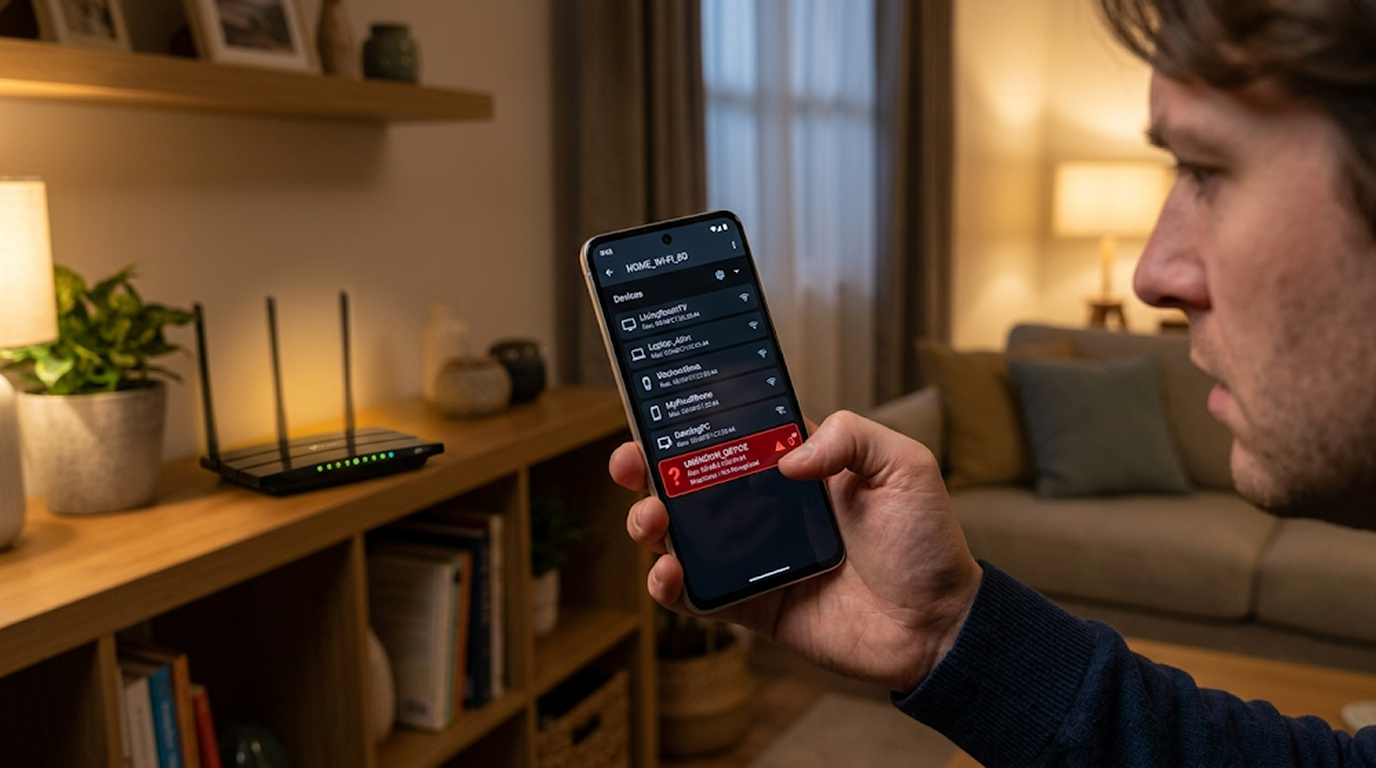
You are at home, working on your computer, and you see that the Wi-Fi light of your router is blinking more than usual. You check your network and spot a device that you do not know of. A phone, laptop, smart TV that you have never owned before. There is someone else using your network.
It is not unusual.
The presence of an unknown device on your network is not merely bothersome but may be a sign of a stranger using your Wi-Fi, a past visitor forgetting to get off your network, or even hackers trying to steal your data.
I will walk you through the exact steps to take to find out if there are unknown devices on your network.
Why This Matters
Someone else using your Wi-Fi is not just about slower internet speeds. It is a security risk.
An unauthorized device in your network can be:
1. Using your internet connection to conduct any illegal activities which will be recorded under your IP address.
2. Accessing the files or devices that you are sharing on your network.
3. Spreading malware to other devices in your network.
4. Theft of your personal data, passwords, and other sensitive details.
5. Conducting attacks to other devices using your network.
Hackers in your network can read unencrypted data, try accessing the shared folders and even seize control of any vulnerable device in your network.
It is important to know which device is connected to your Wi-Fi network.
How to Identify Unfamiliar Devices on Your Wi-Fi
Method 1: Use Your Router’s Administrator Interface
The only fail-safe way to check for all devices using your Wi-Fi is to use your router's administrator interface since every single router features an interface that will show connected devices.
Step-by-step:
Launch a web browser on the computer connected to your Wi-Fi. Enter the IP address of your router in the URL bar. Common IP addresses for routers are 192.168.1.1, 192.168.0.1, or 192.168.1.254. However, if any of the above do not work, then you could get the IP address of the router using "ipconfig/ifconfig" from the Command Prompt/Terminal.
Enter the username and password of your router. If you have not changed the user name and password of your router, then it would be "admin" as the default username and password. It is likely that you would see "admin" or "administrator" written anywhere on the router itself on a sticker. Upon logging into the router, go to the "Connected Devices," "Device List," "DHCP Client List," or "Attached Devices," depending upon the router manufacturer. All the connected devices to your network will be listed with their respective name, IP, and MAC addresses.
The following are some of the administrator addresses of different routers:
1. Linksys: 192.168.1.1
2. Netgear: 192.168.1.1 or 192.168.0.1
3. TP-Link: 192.168.0.1 or 192.168.1.1
4. D-Link: 192.168.0.1
5. Asus: 192.168.1.1
6. BT Hub: 192.168.1.254
7. Sky Hub: 192.168.0.1
Method 2: Use Network Scanning Software
If connecting to your router seems like a complicated task, there is software that scans your network and tells you all devices connected to it. The software is free and easy to use.
List of popular network scanning software:
1. Fing – available for Android, iOS, and desktop. Displays all devices on the network along with their IP and MAC addresses. It also helps to identify the device manufacturer.
2. NetScan – available for desktop. Scans your network and displays all the connected devices.
3. Angry IP Scanner – free and open source software for desktop. Scans the network and shows IP addresses along with other details.
How to use Fing:
Go to your application store and download Fing. Open the application and tap on “Scan” or “Refresh.” The application scans your network and gives a list of all devices connected to your network. You can view the name of the device, IP address, MAC address, and the manufacturer’s name. The manufacturer detail makes it easy for you to identify each device. If there is any device that belongs to a different manufacturer, then it is an intruder.
Method 3: Through Mobile Application of Your Router
Most routers come with mobile applications that enable you to see what devices are on your network. Examples of these mobile applications are Google Nest, Eero, TP-Link, and Netgear that show the list of devices.
Examples:
1. Google Home application (Google Nest Wi-Fi)
2. Eero application
3. TP-Link Tether application
4. Netgear Nighthawk application
All of these applications will allow you to see a simple list of devices and can even control internet connectivity for certain devices.
Method 4: Using the App from Your Internet Service Provider
Some internet service providers use an app to show the connected devices. Virgin Media has an application called “Connect,” and BT has “My BT” app, which lists all the connected devices.
Identifying the Unknown Devices
Having listed all the devices, you will then have to identify your own devices.
Look at the device name.
Many devices have recognizable names. Your laptop might show as "Johns-Laptop." Your phone might show as "iPhone 13." Your smart TV might show as "Samsung TV." If you see a device with a generic name like "Unknown" or "android-xxxxx," it could be yours or it could be an intruder.
Check the MAC address.
Each device has a unique MAC address that can be used to find out the maker of the device. Sites such as macvendors.com allow you to type in the MAC address and know the manufacturer. If the manufacturer is Samsung and you have a Samsung TV, then that device belongs to you. However, if the manufacturer is not one of your brands, it should raise suspicion.
Compare it with the devices you own.
Create a list of all the devices that have Wi-Fi connectivity. These can be phones, laptops, tablets, smart TVs, game consoles, smart speakers, printers, smart lights, webcams, and many others. After that, compare the list of the devices you have with the list of devices from the router. If there is any device that exists in the router's list, but does not appear in your list, then the device is unidentified.
Use the process of elimination.
In case you are not certain, disconnect the device from the network and check whether one of your devices stops working. This can be done by pausing the internet connection of the device from the admin panel of the router. If none of the devices stopped working, the device is not yours.
What to Do If You Notice an Unknown Device on Your Network
When you become aware of the presence of an unknown device on your network, then you must act immediately.
Step 1: Block the Device
By using the router's control panel and app, find this device and block it. It can be done using a "Block," "Pause," or "Disconnect" feature.
Step 2: Change the Wi-Fi Password
While blocking the device is a temporary solution, since the intruder knows the password, he can connect back to your network. You need to change the Wi-Fi password and set a new one using letters, numbers, and symbols.
Step 3: Firmware Update of Your Router
The firmware updates are made by the manufacturer of your router for the purpose of fixing vulnerabilities related to its security. It is necessary to check for firmware update in the administrator panel of your router.
Step 4: Use WPA3 Encryption
In case you have the possibility to use WPA3 encryption for your router, turn it on. It is the latest version of WiFi security protocol and, thus, is much more secure than WPA2.
Step 5: Disable WPS
WiFi Protected Setup is a function, which makes possible to connect to the network through a PIN number or by pressing a button. Although it seems convenient, it poses serious threats to the network security because an attacker can brute force the WPS PIN and access your network.
Step 6: Scan Your Devices for Malware
An intrusion could potentially mean malware infection of your devices from the intruder. Perform an antivirus scan of your devices and accounts.
How to Avoid Unauthorized Access
After securing your network, there are some things you need to do to ensure its security:
Have a Strong Wi-Fi Password
Wi-Fi passwords should be strong. You should have a password that is more than 12 characters and includes letters both upper case and lower case, numbers, and symbols. Your password should not be words that are easy to guess like your name or address.
Use WPA3 Encryption
Where your router supports WPA3, use it. Where it doesn’t, use WPA2. Do not use WEP.
Disable Guest Network if Not Needed
Guest networks are convenient, but they also create an additional entry point. If you do not need a guest network, disable it. However, should you need it, create a good password, and restrict guest access to the internet only and not to the local network.
Periodic Inspection of Devices Connected to the Network
It is recommended that you periodically inspect the list of devices connected to your router, preferably once a month.
Update the Firmware of Your Router
Manufacturers of routers release regular updates for their routers which contain patches to address the vulnerabilities.
Use a Network Monitoring Software
Software applications such as Fing alert you whenever there is a new device added to your network.
The Bottom Line
Having unknown devices on your Wi-Fi network is a threat to your privacy and security because these devices will reduce the speed of your internet, have access to any shared folders, and even get your personal data.
To identify an unknown device on your Wi-Fi network, you need to access the admin console of your router, use network scanning apps, or check your mobile application of the router.
You need to implement some actions to get rid of the unknown device on your network and update the router firmware. You must block the device, change the Wi-Fi password and implement WPA3 encryption technology.
Stay safe. Your network is your digital home.
FAQ Section
How do I see all the devices connected to my Wi-Fi?
You sign into the settings of your Wi-Fi network by entering the IP address of your router. There are options like "Connected Devices," "Device List," or "DHCP Client List." You can also scan the network through apps like Fing to see all devices connected to your network.
What is an unknown device on my Wi-Fi network?
This means someone else is using your network illegally. This unknown device could be the one owned by your neighbors, using your network for their activities, the one of your guest who did not sign out from your network, or a hacker trying to hack into your network.
Can I get hacked through Wi-Fi?
Yes, hackers who hack your network can access your shared files and even attack your device.
How can I prevent an unknown device from using my Wi-Fi connection?
Log in to the router's administrator panel, find the unknown device among the connected devices and block it. The password change will allow you not to connect again to the Wi-Fi network from an unknown device.
At what intervals should I check my Wi-Fi network for unknown devices?
Check the Wi-Fi network once a month. If there are many visitors of the Wi-Fi and if the network is used by other people, then check the network more often. For that, you may use an application called Fing.