WhatsApp and Telegram have become two of the most common delivery channels for scams and malware in 2026. Attackers send files disguised as “AI filters,” “free trading bots,” “invoice PDFs,” “voice notes,” or “family photos.” Many of these files are not what they appear to be and they often leave behind unknown or suspicious files on your phone.
Here’s a practical, easy-to-follow guide to spotting these unknown files on both Android and iPhone, with real examples.
On Android
While using an Android device, users need to be aware of unknown or suspicious files and how to find them.
1. App Data Folders (Most Important)
a) Settings → Apps → Special app access → All files access, or use a file manager like CX File Explorer or Solid Explorer to find where some of these files may be stored.
b) Look in the following locations:
1) /storage/emulated/0/Download/ - look for any recently downloaded APKs or ZIPs that appear to have questionable names.
2) /Android/data/ - this is where many scammers will drop files.
3) /Android/obb/ - this location is often used to store large data models.
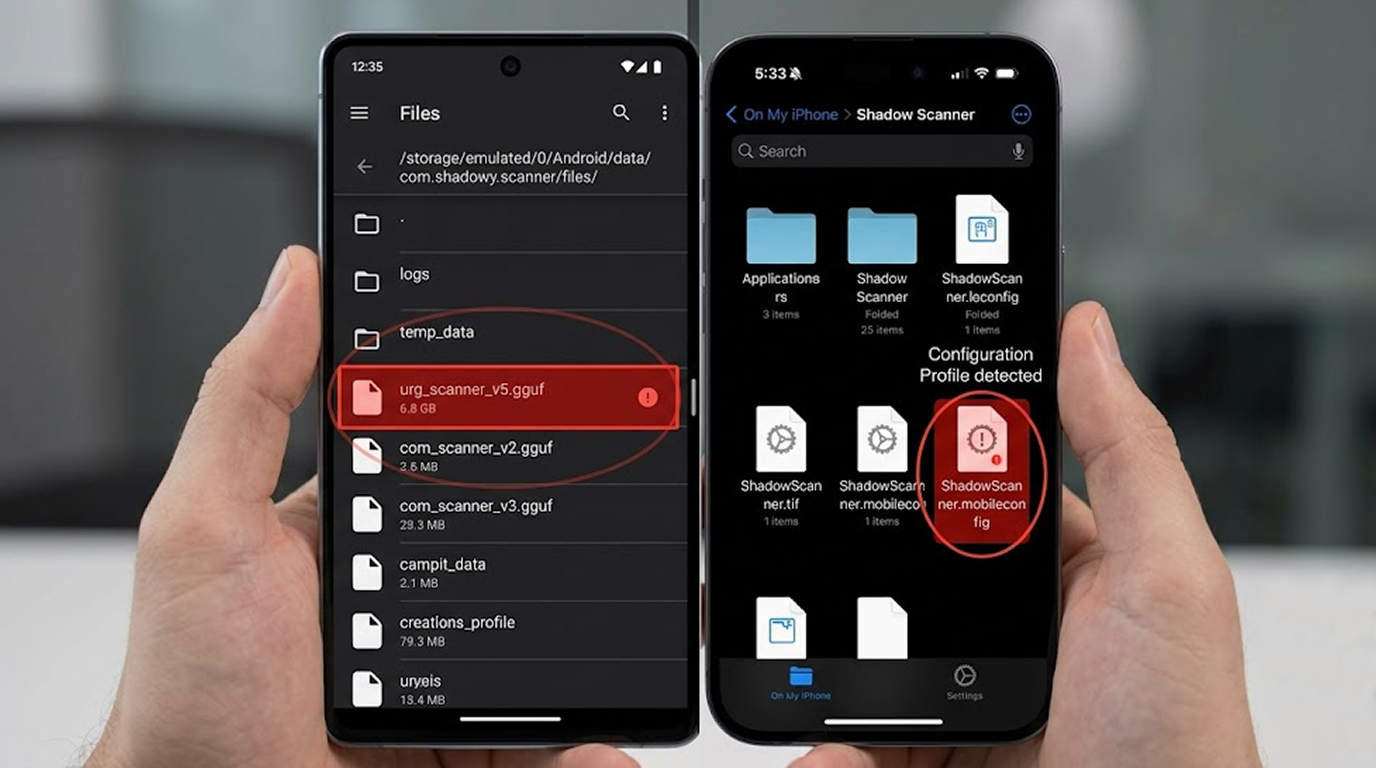
4) /data/data//files/ - look for any .gguf, .onnx, .bin, or any large unknown files.
2. Quick Red Flags
a) Any file that is excessively large, between 300 MB to 2 GB, with an extension of .gguf, .onnx, .bin, .safetensors - this type of file indicates that the malicious "offline AI" app is using local AI models.
b) Any unknown APK or ZIP file in the downloads folder that you cannot remember downloading.
c) Any folder that has a name similar to ai-assist, trading-bot, filter-pro, or any combination of random characters.
For Real Example A person received a WhatsApp message saying, "New AI filter for TikTok, try it out now" with an APK file to download. After installing the apk, the user experienced a 650MB file located at /Android/data/com.ai.filter.app/files/models/model.gguf. The app requested accessibility permissions and was monitoring the clipboard for any crypto information without the user's knowledge.
On iPhone
The iPhone has a more secure operating system at its core, but cybercriminals can and do use social engineering to manipulate unsuspecting victims into giving up their personal information.
Here are some areas you can look to find possible infection:
1. Files App
a) Open the Files app, click on Browse. Select On My iPhone.
b) Check your Downloads folder and folders associated with any apps you suspect may have been installed by scam artists.
2. Settings → General → iPhone Storage
a) Scroll through all apps installed on your phone.
b) Look for recently installed or unusually sized apps (most notably any with names like “AI Editor,” “Trading AI,” “Filter Pro,” etc.).
c) Touch suspicious apps to see how much storage they use. A large amount of “Documents & Data” will show that you are dealing with a potential infection.
3.Safari Downloads
Open Safari → tap the download icon (arrow) at the top right → check for unknown files.
Real Example A user received a Telegram message with a link to “Free AI Photo Enhancer.” After tapping and following the prompts (which led to a configuration profile), a new profile appeared in Settings → General → VPN & Device Management. The profile was installing a malicious configuration that enabled persistent monitoring.
Quick Checklist You Can Use Right Now
For Both Android and iPhone:
1. Have you received a file from a stranger on WhatsApp or Telegram?
2. Was there a sense of urgency from the sender? (“Try it now, before it’s taken down.”)
3. Is there any Accessibility Permissions (Android) required or a Configuration Profile (iPhone) needed?
4. Are there any Large Unknown Files? (.gguf, .onnx, .bin) as well as/or Applications you can’t recall installing.
If you answer “yes” to any of these, treat it as suspicious.
Steps to Take if You Think You Have an Infection
For Android
1. Get rid of the suspicious app right away.
2. Revoke the accessibility option that the app had (Settings > Accessibility).
3. Run a scan with either Malwarebytes or Bitdefender.
4. Check for any unknown model files that might be large in size and erase them.
For iPhone
1. The first thing you need to do is go to Settings and then General then you can go to the VPN and Device Management. You'll need to remove any profiles that seem suspicious.
2. You should delete the application that you are suspicious of from your iPhone.
3. Once you've done that, you should restart your iPhone.
4. After restarting your iPhone, watch for battery loss, excessive data usage, and unusual errors.
To Prevent Future Infection
1. Do Not download any app or link provided by a friend/family member or someone via WhatsApp/Telegram unless you know and trust that person as well as where they got the app/link from.
2. Do Not turn "Install Unknown Apps" ON on Android Device, Only install apps from reputable/legitimate sources.
3. On iPhone devices be very cautious about installing configuration profiles.
4. If someone sends you a "free AI tool" or "viral filter," treat it as a scam until validated otherwise.
Checking your phone regularly for unknown files after being scammed through WhatsApp or Telegram is one of the easiest indicators of having an infection in 2026. Performing this simple check once a week takes only 5 minutes or so but could potentially save you from having major losses.