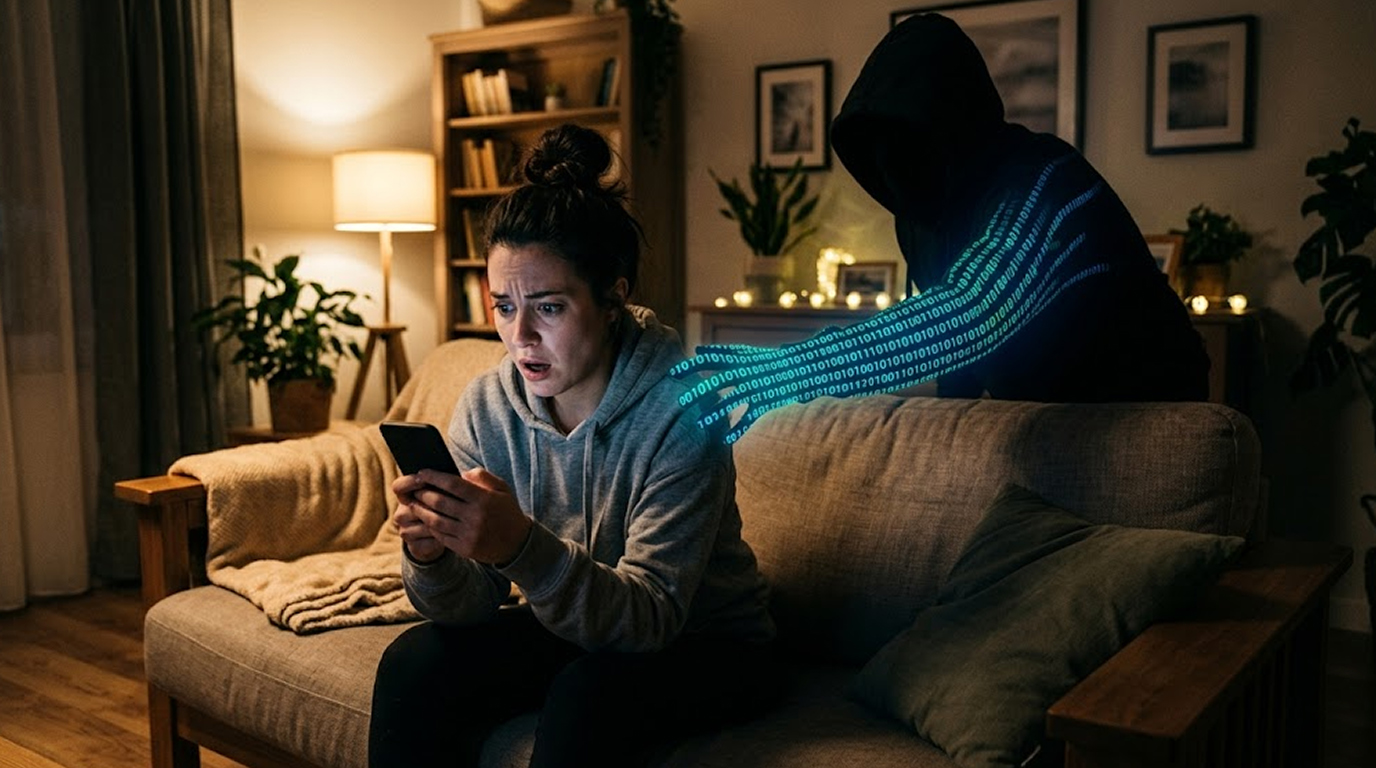
You open Instagram, and you see a photo you never posted. It is a strange product you have never heard of, and the caption is full of weird hashtags.
You check your Facebook, and there are five new posts sharing a "free gift card" link. Your friends are commenting "did you get hacked?"
Your heart sinks. Someone else is using your account, and you have no idea how they got in.
Relax; it is possible to get this resolved immediately.
To remove the hacker and secure your account, follow these steps in order.
The Short Answer
Someone else has access to your social media account, and they are using it to post spam, scams, or malicious links.
They could have stolen your password, or they could still be logged in on a device you used in the past, or they could have stolen your login session without even knowing your password.
You need to act immediately. The longer the hacker has access to your account, the greater the damage they can do to your reputation or con your friends and followers out of their money.
Please do the steps in order and do not skip any.
Step 1: Change your password as soon as possible.
This is the most important thing and it is what you should do first.
The affected platform’s security settings (for instance, Instagram, Facebook, Twitter, TikTok, LinkedIn) should allow you to create and/or change your password instantly.
In order to create your new and secure password:
1. Minimum length of 12 characters
2. A mix of upper case/lower case letters
3. At least one number as well as one special character
4. Do not reuse any passwords
5. Create a password which is not easily guessable; (for instance, do not select your name, your date of birth or another easily identifiable piece of information to create a new password.
What you need to do if you're unable to log in:
If the hacker has already changed your password, click on "Forgot Password" or "Trouble Logging In?" on the login screen to retrieve a password reset from the platform to the email address or phone number that is still connected to the account.
If the hacker also changed your email address or phone number, go to Step 7 (contact platform support).
Step 2: Log Out of All Devices
Also, to remove a hacker’s access: logging out of an account does not remove access that has already been established. That means a hacker will still have access to an account if they logged in already, just that they won’t be able to log back in.
To log a hacker out of an account, go to each application’s settings to log all out of all devices accessing the account.
Instagram: see Settings > Security > Login Activity; once you identify any devices or locations you do not recognize, go to Settings > Security > Saved Login Info, and select Log Out of All Devices.
Facebook: see Settings & Privacy > Settings > Security and Login; look for Where You’re Logged In, click See More to see a full list of devices, and select Log Out of All Sessions.
Twitter (X): go to Settings and Privacy > Security and Account Access > Apps and Sessions; select Sessions, and then select Log out of all other sessions.
TikTok: see Settings and Privacy > Security > Manage Devices; remove any device you do not recognize and look for a Log out of all devices option.
LinkedIn: check Settings & Privacy > Account Preferences > Where You’re Signed In; End Session for any device you do not recognize, or select End All Other Sessions.
Snapchat: Go to Settings > Account Actions > Log Out of All Devices. Confirm the action.
Step 3: Verify Connected Applications And Discard Unknown Apps
Hackers occasionally do not gain direct access to your accounts; instead they simply trick you into allowing them access through an application such as posting as you, using their application to do so without having to know your password.
To verify your connected applications on Instagram:
Go into your applications settings under Settings > Security > Apps & Websites and check for any applications you have not authorized or are unfamiliar with. Delete all apps that are suspectable.
To verify your connected applications on Facebook:
Go into your application settings under Settings & Privacy > Settings > Apps & Websites, review all apps that are currently active, and delete those that are suspectable or you do not use any longer.
To verify your connected applications on Twitter (X):
Go to the application settings section under : Settings and Privacy > Security and Account Access > Apps and Sessions > Connected Apps. You can revoke the access of any application that you do not trust or recognize.
To verify your connected applications on TikTok:
Go to the application settings section under Settings and Privacy > Security > Apps and Sessions and cross reference with those third-party apps that have developed a connection to your account. Delete any third party apps that you do not recognize.
What To Look For:
Any app with a generic name such as: "Photo Editor," or "Free Followers," or "Giveaway Tracker."
Apps you authorized months or years ago and forgot about.
Apps that ask for permission to post on your behalf.
When in doubt, remove it. You can always re-authorize legitimate apps later.
Step 4: Verify your Email Security
If a hacker gained access to your social account, it's possible they also have your email.
This is because a lot of password resets for social media accounts are done via e-mail, and if a hacker has access to your e-mail, he could use that to reset your social account again after you've made the change.
Monitor your email account regularly for any kind of suspicious activity:
1. Check your inbox for any notifications alerting you to the fact that someone changed your password without your consent.
2. Review your email account to determine if unauthorized attempts were made from an email address that you do not recognize; and, if so, only consider those attempts to have been valid if accepted by you under existing protocol with respect to permission from you.
3. Ensure that no forwarding rules have been placed on your email account that are providing forwarding of emails sent to your account, to an account owned by a third party.
4. If you have any backup email addresses linked to your email account that you did not create, you will need to cancel the backup email address.
Secure your email account.
1. Change your email password to a strong, unique password.
2. Log out of all devices on your email account.
3. Enable two-factor authentication, if applicable, for your email account.
4. Delete any questionable forwarding addresses and recovery addresses.
Step 5: Turn on TFA (two-factor authentication) for Your Accounts
Using either TFA (two-factor authorization) or 2FV (second form of verification) will prevent anyone from accessing your social media accounts without permission. TFA adds another level of verification and requires only your username/password and a unique code (usually sent by cell phone) in order for you to log into your social media account.
Once you have access to TFA on a certain social media site, utilize this type of technology and set it up today!
To set up two-factor authentication (2FA) for popular social media platforms, follow these steps:
Instagram: open the Instagram app and tap on your profile. Next, tap on settings and select security, then enable “Two-factor Authentication”. It is recommended that you use an Authenticator app like Google Authenticator or Authy for your second method of 2FA instead of using a text message for the code.
Facebook: Go into the settings page of Facebook, click on Security and Login, click Set Up Two-Factor Authentication (2FA), then follow the steps on the screen.
Twitter/X: You must first log into the app. Click on the settings icon at the top right of the home page, then select Account, and then select Security/Account Access, and finally click on Security. You will see "Verify My Identity With 2 Factor Authentication". Choose either to use a Security Key or Authenticator App for your second factor.
TikTok: Open your TikTok Account -> Go to Settings -> Go to Security -> Enable 2 Factor Authentication, and follow the instructions on the screen.
LinkedIn: Within your Account Settings and Privacy Section, then Account Preferences > Two-step verification > turn on Two-Step Verification.
Don’t forget to write down your backup codes so if you lose your authenticator on your device, you can still access your accounts if you do not have access to any type of 2FA method.
Step 6: Remove Unauthorized Posts From Your Account
Now that your account is secured, delete all posts made by the hacker.
Why It's Important:
1. Removes all scam posts from your profile.
2. Prevents your friends and followers from clicking on links to scams.
3. Helps you in the process of restoring your reputation.
What to Do After Removing Unwanted Posts:
If your account was hacked, you may wish to send out a brief post to your followers advising them, "I was recently hacked, but my account is secure now! Please do not click on any unusual or free gift card product links I have posted!' This type of communication with your fans creates trust and lets them know not to click any links posted by the hacker before you deleted them.
Step 7: If You Cannot Access Your Account
At times, a hacker will change your email address and/or phone number associated with your account so you cannot gain access. If you find that you cannot reset your password due to the fact that you no longer have claim to the recovery information (email/phone number), then you will need to contact the customer service department of the social media platform that you have been using.
Instagram: To reset a password on Instagram, go to the login page, select 'Forgot Password', and then select either 'Need More Help' or 'Can't Reset Your Password'. This will take you through the user verification procedure. When verifying identity for recovery on Instagram, either the original email address used to create the account or a photo of yourself holding a code will likely be needed by Instagram.
Facebook: You can restore a hacked Facebook account using the https://www.facebook.com/hacked link. The instructions provided will help you restore your Facebook account.
Twitter: To restore your Twitter account that was hacked you can visit help.twitter.com and type "hacked account" into the help search box and following the direction should allow for access to your Twitter account.
TikTok: To restore your TikTok account that was hacked visit the login page and select forgot password and select Trouble Logging In, you will then need to follow the instructions that will be provided to you for verifying that you are the account holder.
Info. Needed to Verify Account Ownership:
1. The original email (or phone number) you used to create the account.
As to what ID you are required to provide that you possess, (Each website will vary on what is needed to validate ownership of an account.)
3. The answer to any security questions you set up when you created your account.
4. A video of you (selfie) (will vary by network and some networks may request video verification of you (Instagram))
How Did This Happen
Understanding how the hacker got in helps you prevent it from happening again.
Method 1: Using the same password across multiple sites
If you happened to use the same password for another website that was compromised, then the hacker will have attempted to use that password on your social media account and it will have worked.
Method 2: Phishing
If you clicked on a web link in an email or SMS that appeared to be from Instagram/Facebook/Twitter and entered your password into the website that opens after the click on the link as a result of the virus running within the app, the hacker was able to steal your password.
Method 3: Malware
If you downloaded devious software that has stolen passwords saved in your web browser.
Method 4: Session Hijacked
If a hacker has stolen your login session cookie the hacker may be able to make themselves look as though they have already logged into your account without requiring your password. This can be achieved by clicking on a malicious web link or connecting to an unsecured Wi-Fi network.
Method 5: Malicious App
If you granted permission for an app to post on your behalf and the app was malicious, you will have been compromised.
Method 6: Someone with physical access to your PC
If someone was using your PC and had access to your login information, they could potentially register their computer or change your password while logged in.
Method 7: Data breach on the site itself
Occasionally, there is a data breach on the service that is the end-user’s service. This is very rare; however, sometimes it does occur. In this case, the service should issue a password reset to all of their users.
How to Avoid This From Occurring Again.
After you have regained access to and secured your account, take the following steps to ensure it stays that way.
1. Password Managers:
Using a password manager (such as) Bitwarden, 1password &/or Apple Keychain) also creates strong, randomized passwords for each of your accounts while at the same time remembering them so that you will never have to use the same password on two accounts again.
2. Be sure to enable Two-Factor Authentication (2FA) on every account that you have, including social media, email, banking, and so on.
3. Don’t Click On Unsafe Links:
If you receive a text message or an email stating there was a problem with your account (it may say something like see what’s wrong with your account), do not click on the link but rather go directly to that particular platform’s application by manually typing in your browser (as opposed to clicking on the link).
4. Constantly Reviewing Connected Applications:
Every couple months review connected applications and remove any applications that you do not use and do not know what they are from your list.
5. Be aware of third-parties when logging in:
When a site allows you to use Facebook or Google to log in, be careful what access you are granting. Is that game really going to post for you?
6. Logout of unknown devices from afar:
If you've used your social media account on someone else's cellphone or at the hotel on their computer, you should log out from that device by using the "Log out of all devices" feature.
7. Regularly update your computer and mobile phone:
You help to secure your devices from being hacked by regularly installing operating system updates as security patches. Additionally, these types of updates will help to close possible exploits that would allow a hacker to steal your session cookies.
8. Use a VPN when on public Wi-Fi:
Public Wi-Fi networks are also relatively simple for people to spy on. By using a VPN service, your Internet traffic will be encrypted and kept protected from being hijacked while you are on a public Wi-Fi network.
What Should You Do if the Hacker Posted to Your Page
You deleted the posts, but some of your friends may have seen them, and some of them may have clicked the links in the posts.
Here’s what you can do:
Send a private message to your close friends:
Let them know that your account was hacked and tell them not to click any of the links that were in your account during that time period.
Post a public notice:
You should make a public post on your page informing all of your friends that your account was compromised, but that is now secured and to PLEASE ignore any weird posts that may have been posted by you. You don’t usually post links to get gift cards for free or anything like that.
If you have a business account:
You may want to formally post what happened to your account and let your customers know that their personal data is not in jeopardy (if it is). Depending on the nature of your business, this may have to be reported to government authorities.
If your friends were victims of this fraud:
If your friends clicked on the link created by the hacker and lost money or their information was compromised, encourage those friends to contact their respective banks to report the fraud.
Quick Checklist
Print this to use now or keep it for reference.
Immediate things to do (now):
1. Change the password
2. Log out of all devices
3. Remove any unknown connected apps
4. Check and secure your email account
5. Get rid of posts made by any hacker
Things to do in the short term (today):
1. Enable 2-factor authentication
2. Provide an update for your followers
3. Send a message to all close friends that may be affected
4. Look on other accounts you have for any similar activity
Things to do in the long term (this week):
1. Create a password manager
2. Review all your connected apps for every account
3. Update answers to your security questions (if your platform has them.)
4. Use a security key (YubiKey) with necessary accounts.
The Bottom Line
Your social media account is posting things you did not write because someone else has access.
It feels violating, and it is scary, but you can fix it.
Change your password, log out of all devices, remove suspicious apps, enable two-factor authentication, and secure your email.
Do these steps right now, in order, without skipping any.
Once your account is secure, you can delete the hacker's posts and let your friends know what happened.
You will get through this, and you will be better protected afterward.
Now go change your password. I will wait here.
FAQ Section
Is it possible for someone to post on my social networks without knowing my password?
Yes. They can utilize a 3rd party app that has your approval to post as an authorized user, or they can acquire and compromise your authenticated session cookie (session hijacking). The latter does not require your password to post since the authenticated cookie demonstrates that you are logged into that service.
How do posts end up on my account that I didn't post?
You have social media accounts that someone else can access. They might have obtained your password; alternatively, they may be utilizing an authorized application, or their session cookie may have been stolen. Follow the procedures in this article to revoke their authorization to access your account immediately.
If I change my password, will the hacker be removed from my account right away?
When you change your password, no one can log into your social media account using that password anymore; however, the devices that were previously logged into your social media account remain logged in until you select the “log out of all computers” option.
How can hackers post from my account and I do not get a login notification?
If a hacker steals your login session cookie then the platform still thinks that the session is you and there is no new login notification. The session is already established, therefore, session hijacking is incredibly dangerous.
What is the most common way for social media accounts to be hacked?
The most common cause of hacked social media accounts is password reuse. You use your same password on a hacked site as you do on your social media account. A hacker can then try that password on your social network account where they will have access. The second most common way is through phishing, entering your password onto a fake login page.