Digital signatures were created to build trust.
They answer a simple question:
“Was this file changed, and who signed it?”
The problem is not the technology.
The problem is how much trust we place in it.
Attackers know this and they take full advantage.
What a Digital Signature Actually Does
A digital signature proves:
1. The file hasn’t been modified since signing
2. The signer had a valid certificate at the time
It does not prove:
1. The file is safe
2. The file isn’t malicious
3. The signer wasn’t compromised
This misunderstanding is where malware slips through.
How Malware Uses Digital Signatures to Hide
1. Signed ≠ Safe (But It Looks That Way)
Many security controls:
1. Trust signed files by default
2. Reduce scanning intensity
3. Allow execution without warnings
Attackers exploit this trust.
If malware looks legitimate, it gets more time to run.
Real Example: Stolen Code-Signing Certificate
A software vendor’s certificate was stolen.
Attackers:
1. Signed malware with the real certificate
2. Distributed it via email and downloads
Result:
1. Antivirus allowed execution
2. Users trusted the file
3. Detection came late
The certificate was valid.
The file was malicious.
2. Abusing Legitimate Signed Software
Legitimate signed programs are not usually used by cybercriminals to create their harmful applications (i.e. malware); rather, these criminals will typically do one of the following:
1. Abusing already-signed programs
2. Hiding within trusted executables
This is a common factor in LOLbins (Living-Off-the-Land) operations, with the following being examples:
1. PowerShell
2. rundll32.exe
3. mshta.exe
All of these tools come by default as "trusted" but are widely abused.
3. Malware Enclosed in a Verified Install Application
Another type of deception is as follows:
1. A verified install application containing malware
2. The application runs as though it were legitimate
3. The malware executes without the user's knowledge
The user experiences:
1. No warnings
2. The trusted vendor's name
3. A message that says "The installation was successful."
At the same time, the malware runs in the background on the victim's device.
Why Security Tools Sometimes Miss This
Security systems often rely on:
1. File reputation
2. Certificate trust
3. Known malware signatures
Signed malware breaks all three:
1. New hash
2. Valid certificate
3. Trusted appearance
This delays detection until behavior gives it away.
Practical Signs a Signed File Is Still Suspicious
Even if a file is signed, watch for:
1. Execution from temp or user folders
2. Network connections immediately after launch
3. Unusual child processes
4. Silent persistence mechanisms
Trust should always be verified.
Tools Defenders Use to Investigate Signed Malware
Check the Signature Details
On Windows:
1. Right-click → Properties → Digital Signatures
2. Look for:
a) Unknown vendors
b) Recently issued certificates
c) Revoked certificates
Verify Signature via Command Line
Get-AuthenticodeSignature suspicious.exe
Look at:
1. Status
2. Certificate issuer
3. Timestamp
Valid signature ≠ clean file.
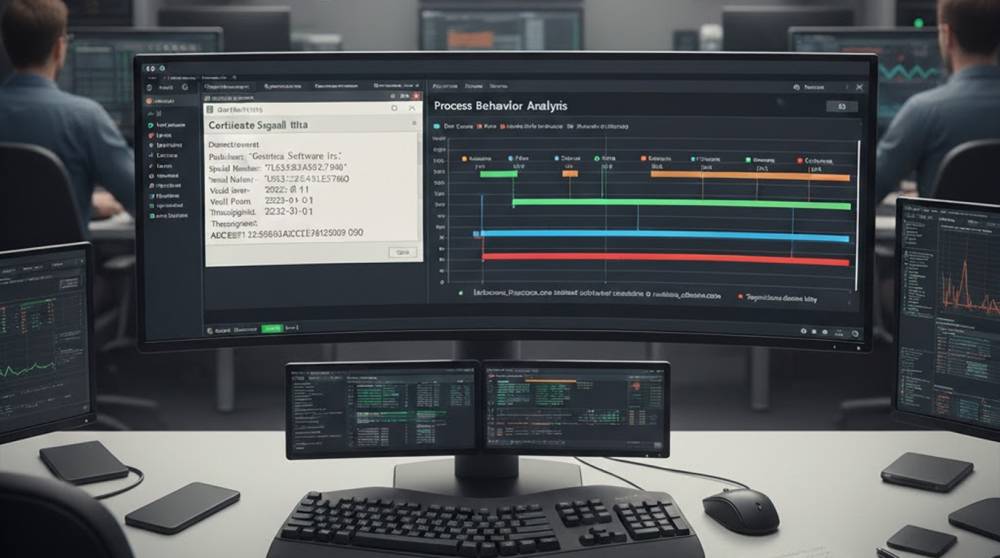
Analysis of Reputation and Behaviour
1. VirusTotal (detection + certificate reuse check)
2. Hybrid Analysis
3. Any.run (read-only report)
These tools give insight into the file's activity as well as its identity.
Example: Activity is More Important Than Trust
A file that has been signed would have passed the AntiVirus Scan and been executed without warning messages.
Any Telemetry would show:
1. PowerShell spawning hidden processes
2. Network traffic targeting unknown or unidentified ip addresses
3. Scheduled Tasks used to maintain persistence on the infected system
Simple Detection Logic
if file.is_signed:
if file.exec_location in ["Temp", "AppData"]:
alert("Signed file running from risky path")
This kind of logic catches what trust-based models miss.
How Organizations Reduce This Risk
Successful teams will:
1. Record what users are doing with their command lines;
2. Monitor the parent-child relationships between processes;
3. Be aware of how certificates are reused; and
4. Not assume that a signed file is automatically trustworthy.
Successful teams primarily rely on the detection of unusual behaviors by means of a behavioral analysis. The signature is only one indicator of possible malicious activity; therefore, no assurance should be made regarding the authenticity of the file.
Mistakes that teams should avoid include:
1. Placing an unqualified file on a whitelist simply because it has a signature;
2. Ignoring every alert stating that legitimate tools are being used;
3. Relying on certificates as conclusive evidence of trust; and
4. Reducing the number of alerts due to a high volume of false positives.
Most of the time the methods used to actually compromise a computer system will not seem at first glance to be anything out of the ordinary.
Important Notes:
1. A digital signature indicates where a file has originated from, not its intent;
2. Attackers exploit the trust placed in digital signatures, not the technical aspects of digital certificates;
3. Many real-world attacks employ malware that is digitally signed; and
4. The behaviors exhibited by an attacker can often reveal more than the signature itself.
5. Trust should always be validated; when something seems too good to be true, you should be investigating it further.